My Approvals
When a rep submits a deal that trips your step in an approval chain, it lands in My Approvals — the default tab of the Approvals app. This is where you review what’s waiting on you and decide.
Your queue
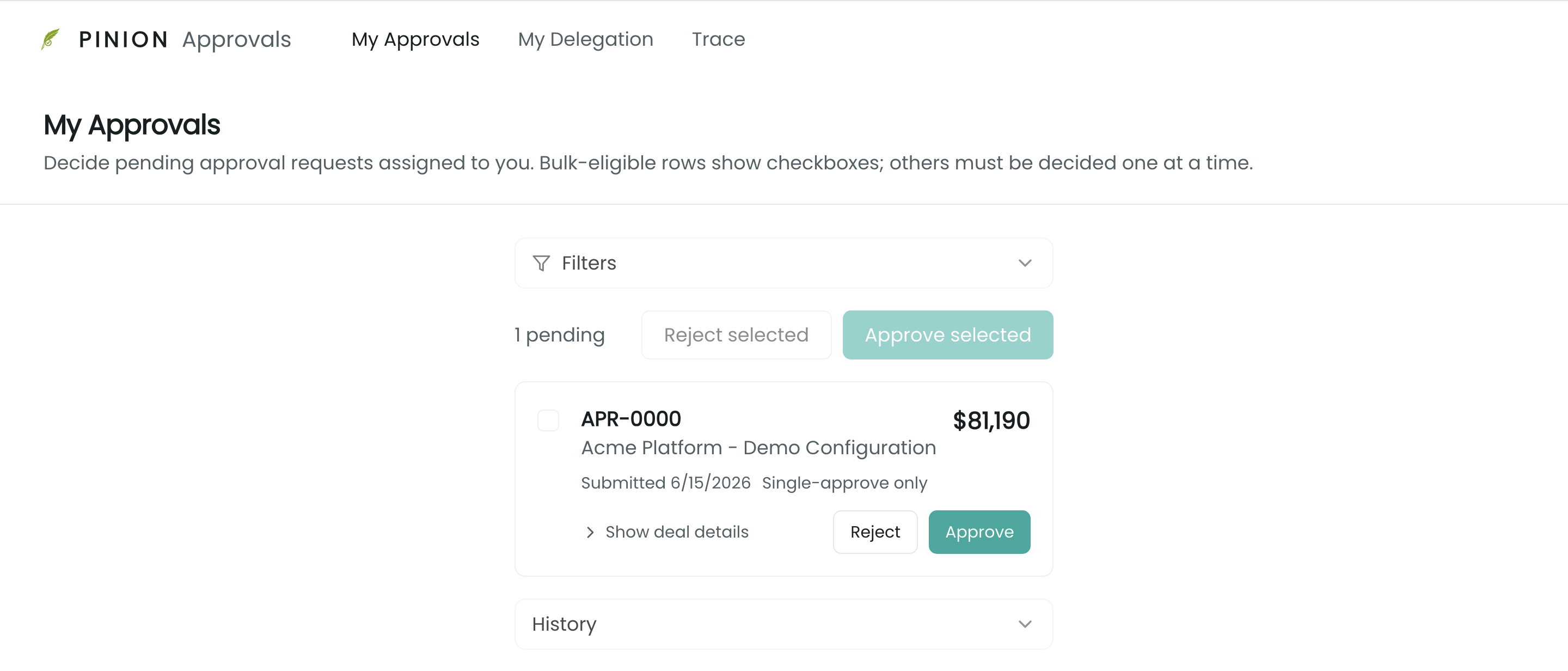
My Approvals lists the requests assigned to you that are still pending (“Decide pending approval requests assigned to you. Bulk-eligible rows show checkboxes; others must be decided one at a time.”). Each request is a card showing:
- the request (e.g.
APR-0000) and the configuration / deal name, with the deal total on the right; - a Submitted date;
- a badge — Single-approve only for a single-approver step, or a cohort badge Any of N (first approval clears the step) / All of N (everyone must approve) for a multi-approver step;
- SLA status (“Due in X hours” / “X hours overdue”) when the step has an SLA;
- Show deal details to expand the drawer, and Reject / Approve buttons.
On an amendment, the deal total is what the amendment books (the change against the contract, the same number as the opportunity Amount), not the full value of the amended configuration.
Narrow the list with Filters (e.g. minimum deal amount, age, rule name) at the top.
Reviewing the deal
Expand a card to open the deal-detail drawer — everything you need to decide without leaving the page:
- The deal’s line items (product, quantity, price, discount, total).
- Who else is on this step and their status (approved / pending / cancelled) — the cohort context.
- The firing criteria — condition by condition, the value on the deal vs. the threshold that tripped the rule, so you can see why it needs your sign-off.

Approving or rejecting
Each card has Approve and Reject.
- Approve advances the chain — the next step activates, and once every required approver has signed off the configuration becomes Approved (the rep can then sync it).
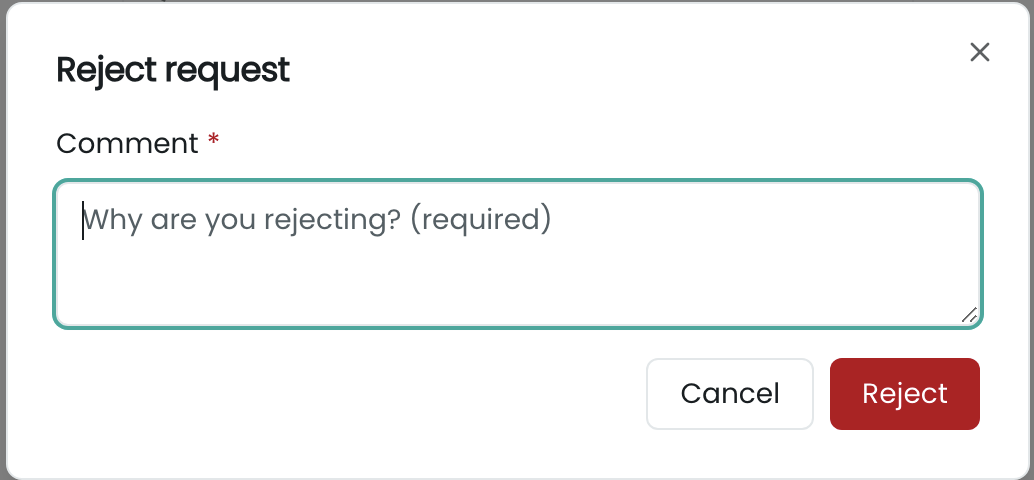
- Reject sends the deal back to the rep. A comment is required when rejecting — it’s what tells the rep what to fix. (The app blocks a reject with an empty comment.)
What a rejection does to the rest of the chain depends on the chain’s match policy (set when the rule was authored — see Approval Rules ▸ Policy): “All paths” cancels the siblings and rejects the deal; “Any path” falls through to the next matching step. The rep is emailed on the final decision.
Bulk decide
When a rule is authored to allow bulk approval, its cards show a checkbox. Select several and use Approve selected or Reject selected at the top of the list (next to the pending count, e.g. “1 pending”) to decide them together — bulk works for both approve and reject. Cards whose rule doesn’t allow bulk are labeled Single-approve only and offer just the single Approve / Reject buttons. An ineligible request caught in a bulk selection is skipped (reported back), not failed.
History
By default the queue shows only what’s awaiting your action. Switch to History to see recently decided requests (approved / rejected) and cancelled siblings — the audit trail for what already happened.
Related
- Overview — the full lifecycle and how decisions move a deal.
- Submitting & Recalling — the rep’s side that creates these requests.
- Delegation — covering your queue while you’re out of office.
- Trace — the full rule-by-rule evaluation record for a deal.
- Approval Rules ▸ Policy — match policy, cohorts, bulk-approve, and SLAs are authored there.