Block Pricing
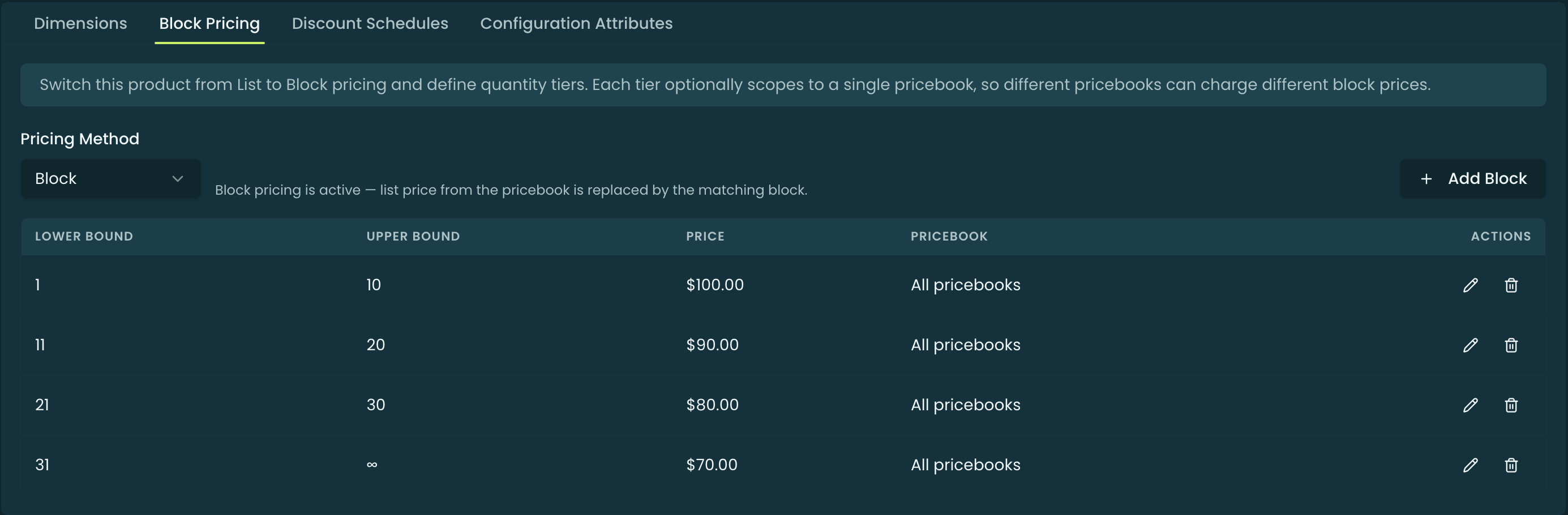
By default a product prices at its list price (the PricebookEntry). Block Pricing is an alternative: a set of quantity bands, each with its own fixed unit price — 1–10 seats at one price, 11–50 at another, 51+ at a third. When a product is on Block pricing, the band that matches the line’s quantity supplies the unit price in place of the list price.
You configure it per product in Product Manager: open a Product, go to the Pricing tab, and select Block Pricing. (Unlike Dimensions, Block Pricing is available on any product, not just subscriptions.)
Switching a product to Block pricing
The tab has a Pricing Method control — List or Block:
- Block — “list price from the pricebook is replaced by the matching block.” The tiers you define are live.
- List (default) — the product prices at its list price; block tiers are saved but not applied at runtime. You can author tiers ahead of time and flip the method on later.
Defining a tier
Add Block opens the tier editor. Existing tiers show in a table — upper bound renders as ∞ when blank, and the pricebook column reads “All pricebooks” when the tier isn’t scoped. Each tier has:
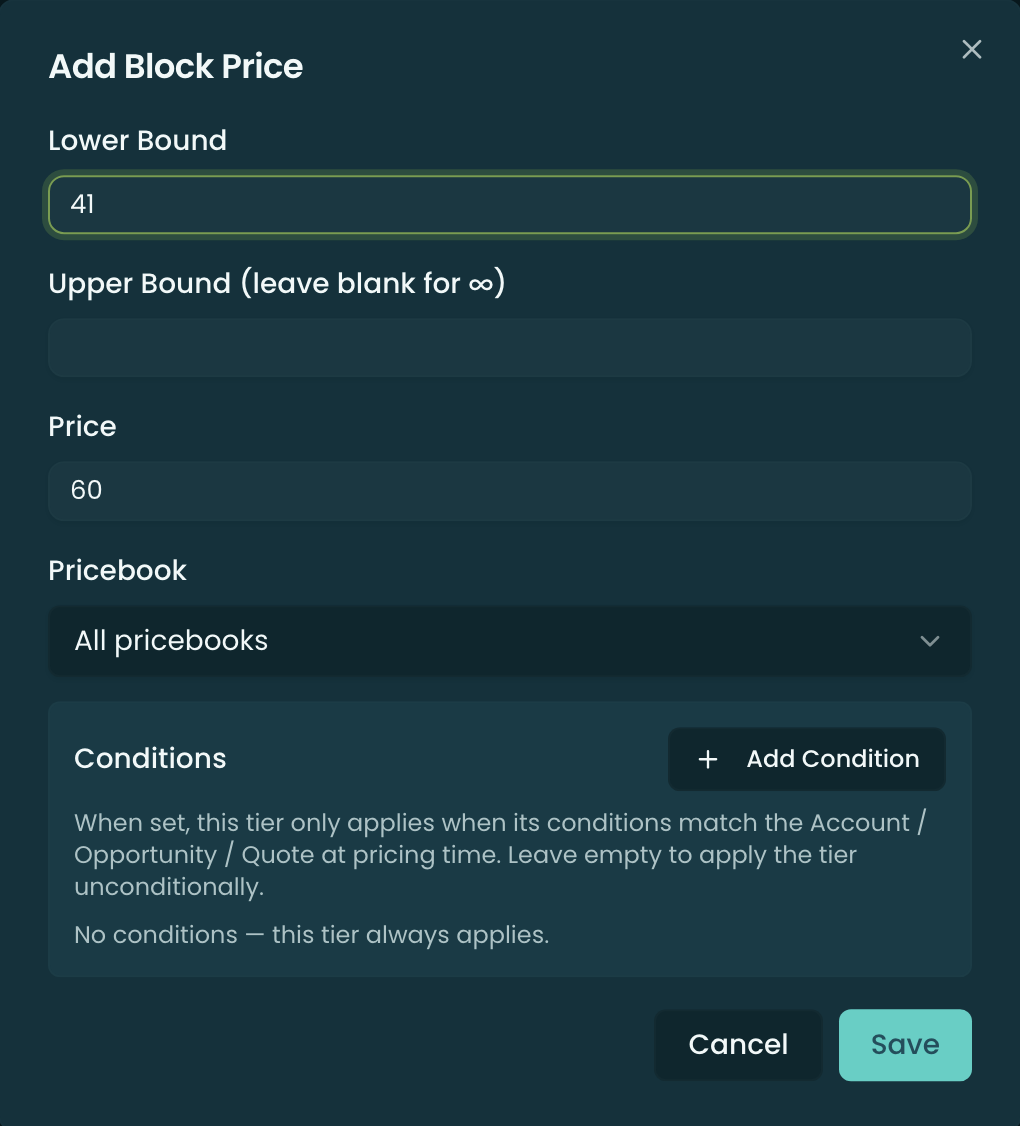
- Lower Bound and Upper Bound — the quantity band. Leave Upper Bound blank for ∞ (the open-ended top tier). A new tier auto-starts its lower bound just above the previous tier’s upper bound.
- Price — the fixed unit price charged for quantities in this band.
- Pricebook — All pricebooks, or a single pricebook. Scoping lets different pricebooks charge different block prices for the same product.
- Currency (multi-currency orgs) — block tiers are per-currency.
Conditional tiers
A tier can optionally be gated by conditions so it only applies when the deal matches. In the Conditions section of the editor:
- Conditions Met — All (AND), Any (OR), or Custom (with a logic expression like
(1 AND 2) OR 3). - Each condition tests a field on the Account, Opportunity, or Quote: pick the object, the field API name, an operator (Equals, Greater Than, In, Is Null, Before Date, …), a value, and a value source (Literal or Field Reference), plus an Active toggle.
An empty condition list means the tier always applies (the common case) — e.g. gate a discounted tier to Account.Tier = Government.
Choosing an aggregation mode — Slab vs Range
When a line’s quantity spans more than one band, Pinion needs to know how the bands combine. The Block Aggregation Mode control on the Block Pricing tab decides this — it’s the block-pricing counterpart to the Slab / Range choice on Discount Schedules and Usage Rate Cards:
- Range (volume) (default) — the single band the total quantity lands in prices every unit. This is the historical block behavior, so existing block tables are unchanged.
- Slab (graduated) — each band prices only the units that fall within its bounds, tax-bracket style; the slices are summed and blended into one per-unit price.

A worked example
Take a two-band table — [1–100 @ $50], [101–200 @ $40] — and a line quantity of 150:
- Slab (graduated): each band prices only its own units —
100 × $50 + 50 × $40 = $7,000, a blended $46.67/unit ($7,000.50 across the 150-unit line). - Range (volume): quantity 150 lands in the
101–200band, so the whole line prices at that band’s $40/unit = $6,000.
A single-band table prices identically under either mode (there’s only one band), so the mode only matters once a table has more than one band. Quantities beyond the top band fall back to the highest band under both modes.
On the quote
When a block-priced product is on the deal, the quote’s Block Pricing Rate Card document section prints the product’s quantity bands. Above a multi-band table it shows a one-line caption naming the mode — “Graduated pricing (Slab): each tier prices only the units within its band” for Slab, or the volume-pricing equivalent for Range. A single-band table omits the caption (it prices the same either way). The line’s own price on the quote comes from the saved line item, so the printed total always matches what the configurator computed. It’s an addable document-template section, sitting next to the Usage Rate Card.

How it prices
At quote time, for a product on Block pricing, Pinion finds the tier whose band contains the line quantity (and whose conditions match), and uses that tier’s price as the unit price. See Pricing Methods — Block for where Block sits in the waterfall and how it interacts with discounts.
Related
- Pricing Methods — where Block pricing sits in the waterfall.
- Discount Schedules — percentage-off-by-volume, the discount-side counterpart, with the same Slab (graduated) / Range (volume) convention.
- Usage Rate Cards — the same Slab / Range aggregation choice applied to metered overage.
- Configurator → Building a Quote — setting quantities and prices on a line, where the aggregation mode takes effect.
- Product Groups — product visibility and grouping.