Deploy to Sandbox
Deploy to Sandbox pushes your entire promotable catalog into a connected sandbox in one click — products, bundles, pricing and product rules, attributes, discount schedules, and more. There’s no manual mapping: everything is auto-matched by SyncKey. Open it from the Deploy to Sandbox tab.
This is the bulk counterpart to the granular Map & promote workbench. Use it when you want a sandbox to mirror your whole catalog rather than promote a handful of specific records.
How it matches
Records are reconciled by SyncKey, three ways:
- Existing target records (same SyncKey) are updated.
- Missing records are created, carrying your org’s keys.
- Matched-and-identical records are left untouched.
Because it keys on the SyncKey, the deploy is idempotent — running it again when nothing has changed is a no-op. That’s exactly what makes it the reliable way to re-seed a sandbox’s keys after a refresh: any record whose key didn’t come across cleanly gets its key seeded, and everything else is left as-is.
Because it pushes the entire catalog, every reference is inherently present — there are no cross-record dependencies to resolve in order. This is also why Deploy to Sandbox is the go-to fallback if a single granular promotion ever hits a reference it can’t carry (see Map & promote and Troubleshooting).
1. Pick a sandbox
Choose a Target connection from the dropdown — one of your registered connected targets.
2. Preview
Click Preview deploy. Pinion runs a read-only pass over the whole catalog and shows a Deploy plan: how many object groups and records are in scope, with create / update / unchanged counts, broken down per object in a table. Nothing is written during preview.
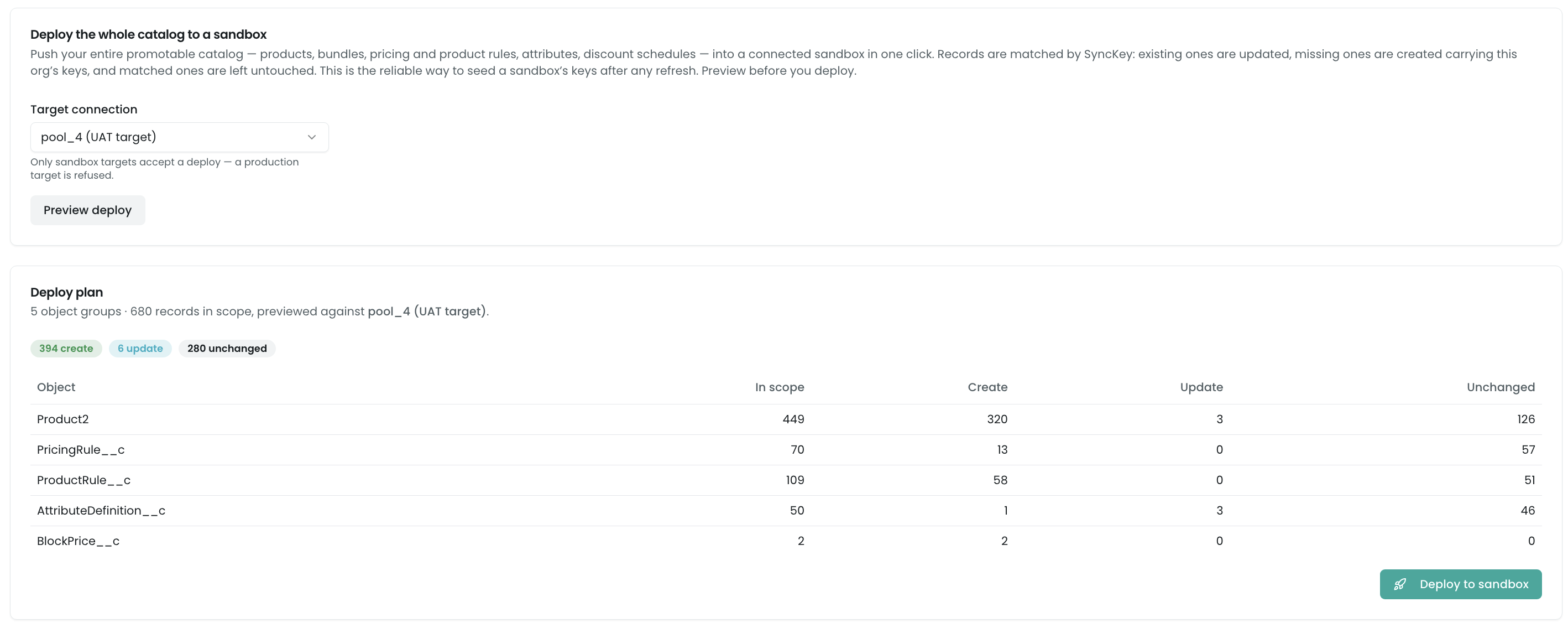
If the target refuses the deploy (e.g. it’s a production org), the plan shows a blocked message with the reason instead of a Deploy button.
3. Deploy
When the plan looks right, click Deploy to sandbox. Pinion pushes the catalog across chunked background jobs and shows a Deploy results card — counts of created, updated, skipped, and failed. A failed deploy surfaces why inline (the actual error and any per-record failures), so a failure is never a silent “Status: Failed”.

After a sandbox refresh
A sandbox refresh copies production’s data, including SyncKey values — so a freshly refreshed sandbox usually already shares production’s keys (see install order). Deploy to Sandbox is the universal post-refresh seeding step that makes this dependable: run it after any refresh to update the sandbox’s config to match production and seed any keys that didn’t come across, all in one idempotent pass.
Maintenance: Backfill SyncKeys
The Deploy to Sandbox tab also hosts the Maintenance card with the Backfill SyncKeys button. SyncKeys are stamped automatically on create and on every package upgrade, so you only need this to backfill records that predate a feature, a source-deployed org, or an incomplete install — records left without a key, which can’t be promoted. It stamps only records that are missing a key, so it’s safe to run anytime and re-running is a no-op. Pinion asks you to confirm, then enqueues a background job and shows the job id. See Cross-org identity & install order for the full story.

Related
- Map & promote workbench — the granular alternative when you want to promote specific records, not the whole catalog.
- Connecting orgs — registering the connected sandbox.
- Cross-org identity & install order — why a refresh inherits keys, and what Backfill SyncKeys is for.
- Troubleshooting — blocked deploys, failed records, and unstamped records.