Pricing Rules
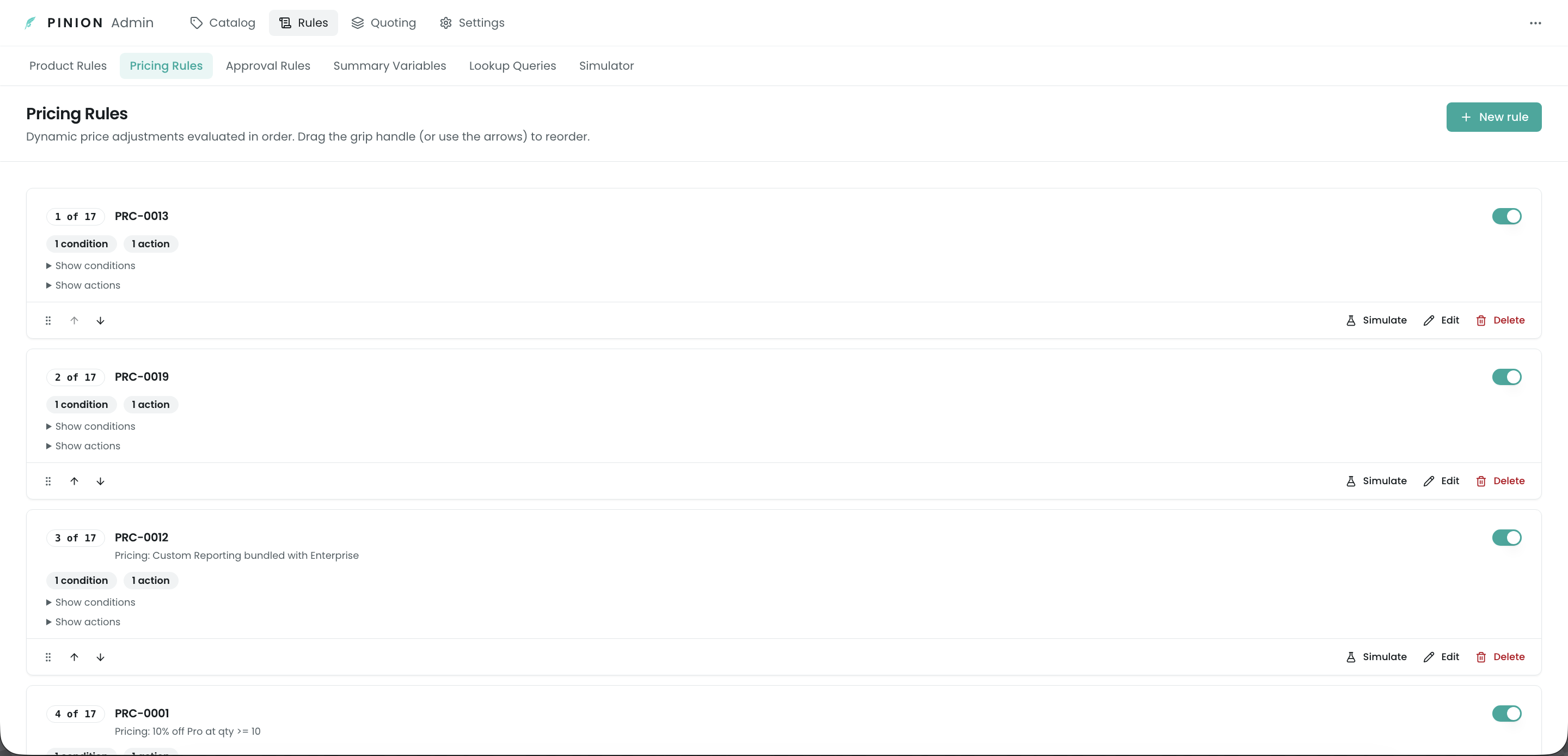
Pricing Rules let you express price logic — “platform customers get 15% off the add-on,” “set the implementation fee to match the seat count,” “add a $500 handling charge on hardware bundles” — as conditions and actions, instead of relying on reps to remember and key it in. When the conditions match, the rule adjusts the line’s price or discount automatically.
Pricing Rules are the close cousin of Product Rules: same wizard, same condition builder, same bundle scoping. The difference is what they do — Product Rules add/remove/validate products; Pricing Rules only ever adjust price fields. If you’ve read the Product Rules page, the Basics, Conditions, and Bundle-scope sections below will be familiar; the Actions and Precedence sections are where Pricing Rules diverge.
What a Pricing Rule can do
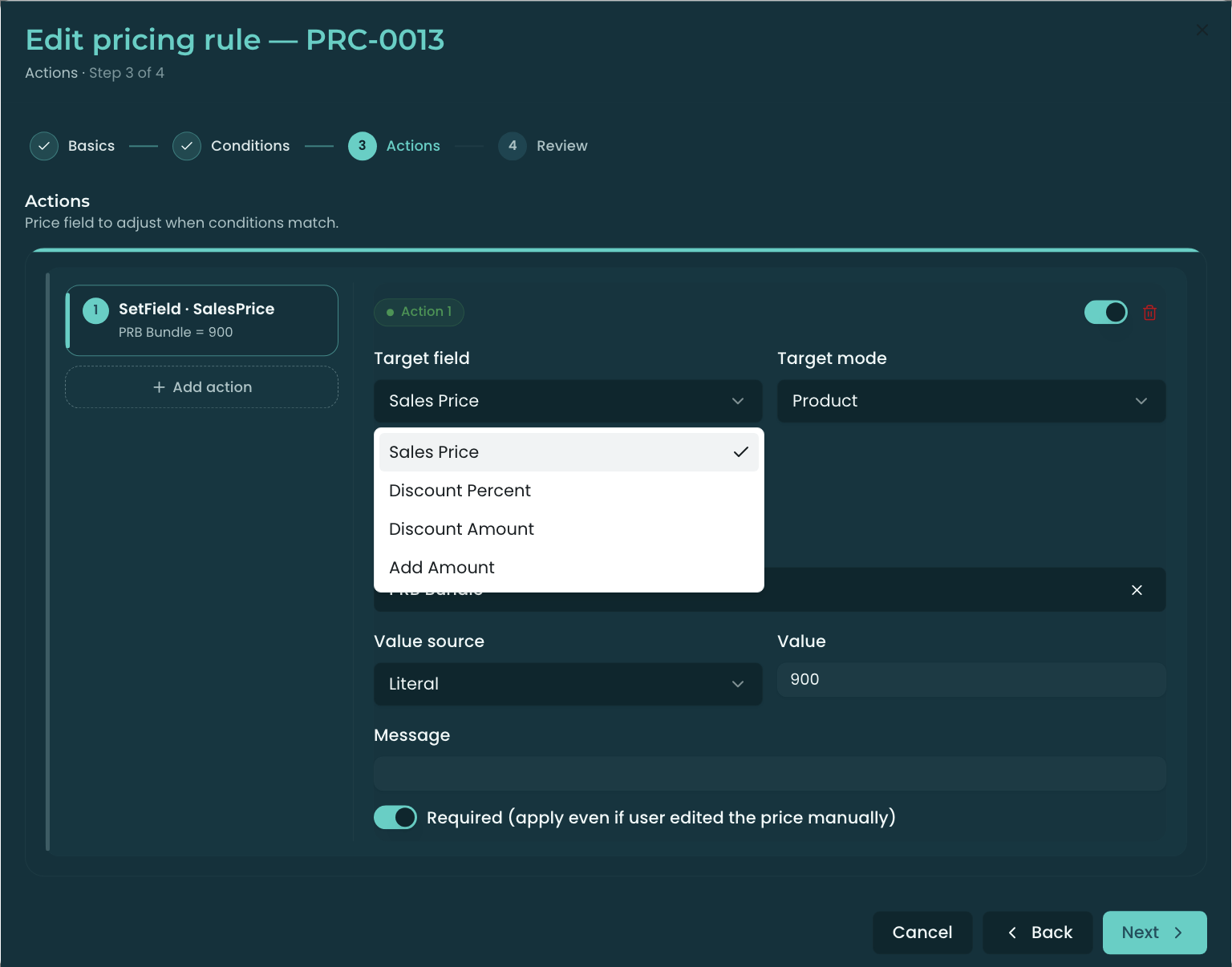
A Pricing Rule has no “type” — its single job is to adjust price. Each action writes to one of four targets:
| Target field | Effect | Example |
|---|---|---|
| Sales Price | Overrides the line’s unit price outright | ”Set unit price to 250” |
| Discount Percent | Applies a percentage discount | ”10% off” |
| Discount Amount | Applies a fixed-dollar discount | ”$50 off” |
| Add Amount | Adds (or, when negative, subtracts) a dollar amount on top of the resolved price | ”+$500 handling” |
Each action is either locked or suggested (the Required toggle):
- Locked (Required on) — the rule’s value is authoritative. The toggle reads “Required (apply even if user edited the price manually)”: the rep can’t override it, the price field shows a lock icon and is read-only, and the value is enforced at save.
- Suggested (Required off) — the rule sets the value as a starting point, but the rep can edit it; their override sticks.
Anatomy of a rule
You build a Pricing Rule in the same guided 4-step wizard — Basics → Conditions → Actions → Review (the New rule button on the Pricing Rules page).
The Basics step carries the same fields as a Product Rule — Evaluation event, Bundles (optional scope), Effective dates, Active — minus the rule-type and error-message fields (a Pricing Rule never blocks a save, so it has no error message). See Product Rules ▸ Anatomy for the shared detail. The rule’s name is auto-numbered (PRC-…).
Conditions
Pricing Rule conditions are identical to Product Rule conditions — same tested objects (Product, Bundle Option, Dimension, Opportunity, Quote, Summary Variable), same operators, same value sources. See Product Rules ▸ Conditions for the full reference. A rule fires when its conditions combine to true (per the All / Any / Custom logic on the Conditions step).
Actions — adjusting the price
This is where Pricing Rules differ from Product Rules. On the Actions step, each action specifies:
- Target field — Sales Price / Discount Percent / Discount Amount / Add Amount (above).
- Value source — where the number comes from:
- Literal — a fixed value (
250,10). - Field reference — a live field on the record (e.g. Opportunity ▸ Negotiated Discount).
- Lookup — a value resolved from a Lookup Query (e.g. a rate-card table keyed by region and tier).
- Formula — a computed expression (e.g. seat count × per-seat rate).
- Literal — a fixed value (
- Target mode — which line(s) the adjustment applies to: a specific Product, a Bundle Option, or a Dimension (an MDQ segment). A Dimension-targeted action fans across every segment of a matching MDQ product.
- Required — locked vs suggested (above).
Precedence — when several rules touch one line
Because multiple Pricing Rules can target the same line, order matters. The engine resolves conflicts deterministically:
- Evaluation order. Rules fire in their Evaluation Order (lowest first; reorder by drag-and-drop on the Pricing Rules page). Rules with no order set run last.
- Sales Price / discount → last write wins. If two rules both set the unit price (or both set a discount), the later rule in evaluation order wins.
- Add Amount → accumulates. Multiple
Add Amountactions stack (e.g. a $200 and a $300 surcharge sum to $500), rather than overwriting. - Locked beats suggested. A locked rule’s value can’t be displaced by a suggested one, and the rep can’t override it.
When rules run
- Evaluation event — same model as Product Rules (Always / Load / Edit / Save); see Product Rules ▸ When rules run. Server-side enforcement at save covers the Save and Always events.
- Bundle scope — the same Bundles (optional) picker on the Basics step restricts a rule to specific bundles; empty = fires on every bundle. See Product Rules ▸ Scoping a rule to specific bundles.
- Effective dates — an optional start/end window gates when the rule is active.
What the rep sees
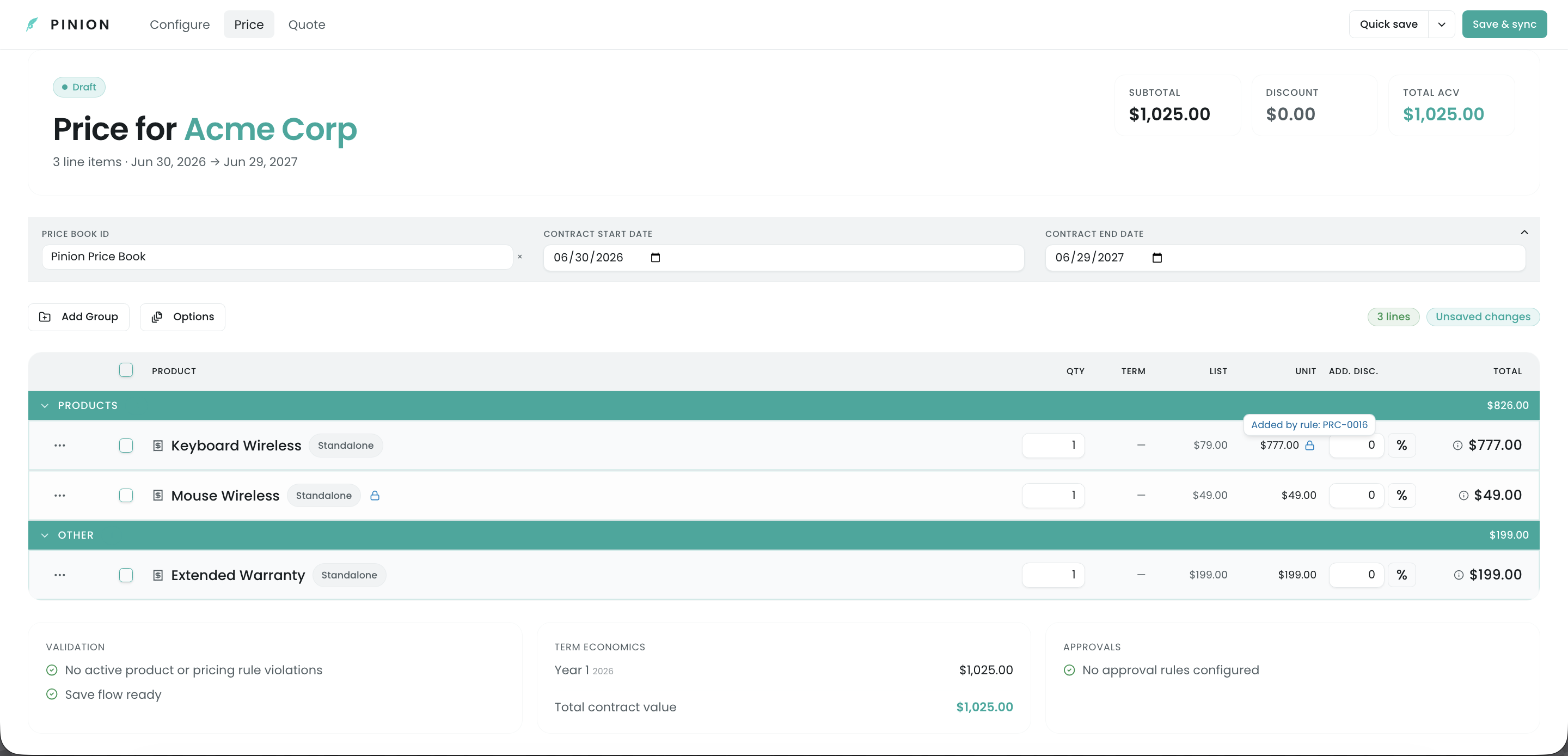
- A locked (Required) rule sets the price or discount and the field renders read-only with a lock icon — the rep sees the adjusted number but can’t change it.
- Hovering the adjusted price shows an “Added by rule PRC-…” tooltip, attributing the change to the specific rule — so a price that differs from list is never a mystery.
- A suggested rule sets the value as an editable starting point; if the rep changes it, their value sticks.
- Either way, the adjusted price flows through to the Products tab total, the Configuration Options tab, and the saved quote.
Testing with the Simulator
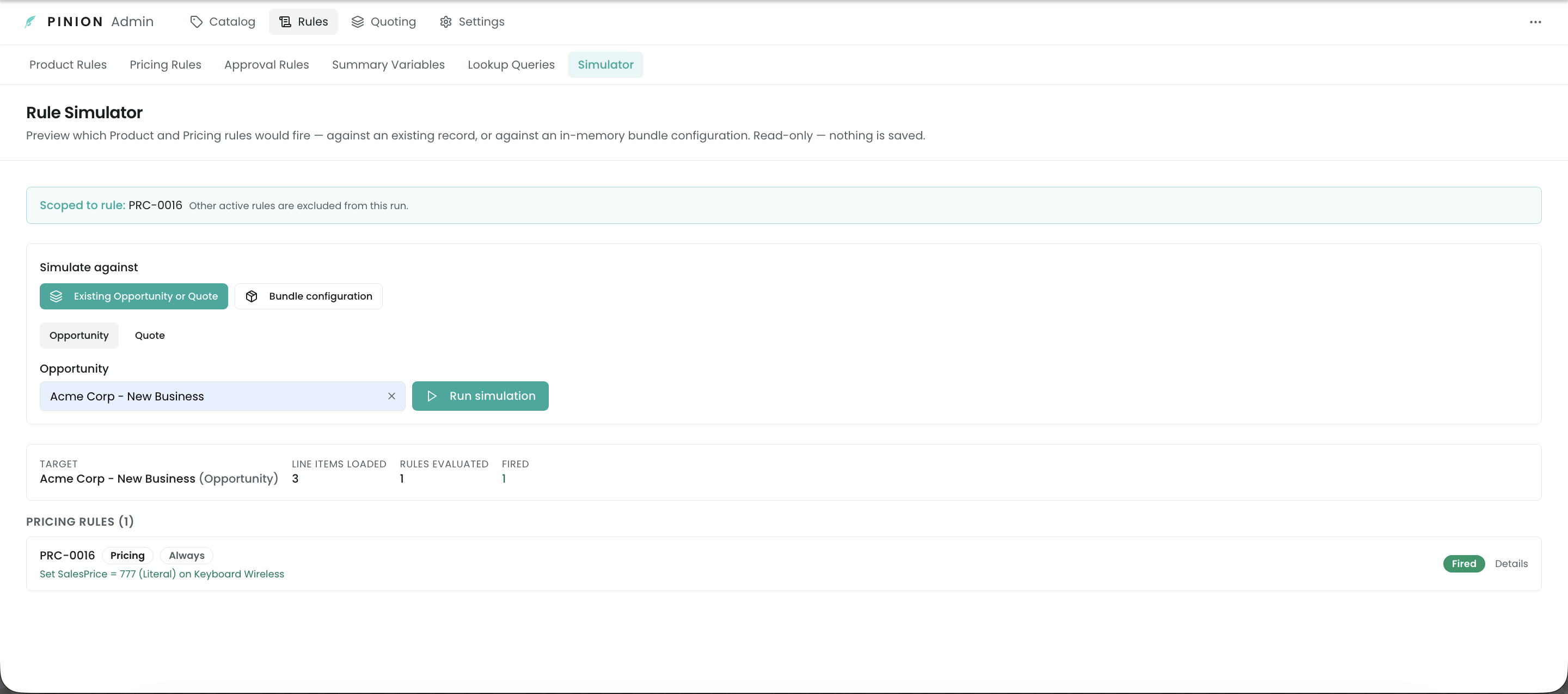
Test a Pricing Rule before activating it in the Rule Simulator (under Rules) — it evaluates rules with zero database changes against an existing Opportunity/Quote or a virtual bundle configuration, and shows each rule as Fired / Not fired / Out of scope plus the resulting price adjustment. This is the right place to confirm evaluation order and the final computed price. See Rule Simulator.
Limits & gotchas
- Pricing Rules adjust; they don’t block. Unlike Validation (Product) rules, a Pricing Rule never stops a save — it only changes price. Use an Approval Rule if a price/discount needs sign-off.
- Active-rule limit by tier. The Base tier caps the number of active Pricing Rules; Pinion+ is unlimited. Inactive rules don’t count toward the cap.
- Manual overrides coexist with rules. A rep’s manual price/discount on a line that no locked rule targets is preserved. A locked rule’s value, where one applies, is authoritative.
- Negative and zero cases are handled defensively — a rule can’t drive a price below zero, and a percentage discount over a zero base resolves sanely rather than erroring.
Related
- Product Rules — the shared wizard, condition builder, and bundle scoping (this page cross-references it heavily).
- Approval Rules — gate a price or discount on approval.
- Lookup Queries · Summary Variables — dynamic value sources for pricing actions and conditions.
- Rule Simulator — what-if testing for firing order and computed price.