Rule Transparency & “Why this price”
Pinion’s rules don’t act invisibly. When a rule blocks a save, locks a price, auto-selects a product, hides a SKU, or adjusts a number, the Configurator tells the rep what happened and which rule did it. This page catalogues every one of those feedback surfaces and where it appears. (How the rules themselves are authored lives in Rules; this is purely what the rep sees.)
Validation errors and alerts
Rules raise two severities of message, and they behave differently:
- Validation — an error. It blocks Save & sync until you resolve it.
- Alert — a warning. It’s informational; the save still goes through.
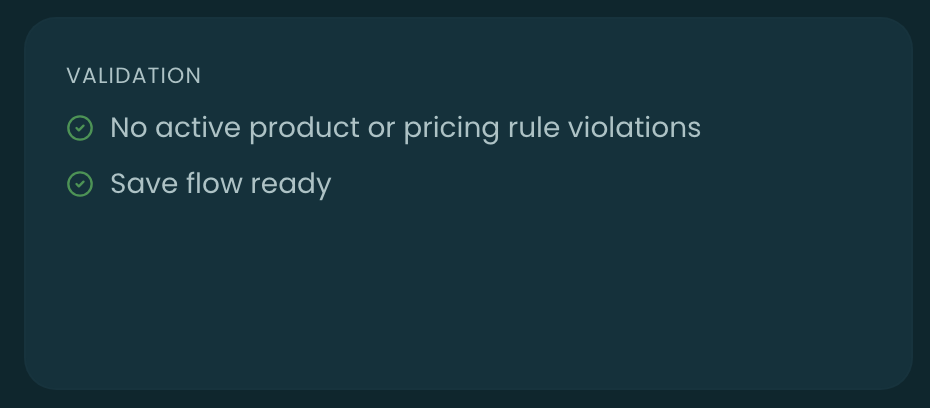
When everything’s clean, the footer Validation card shows the all-clear:
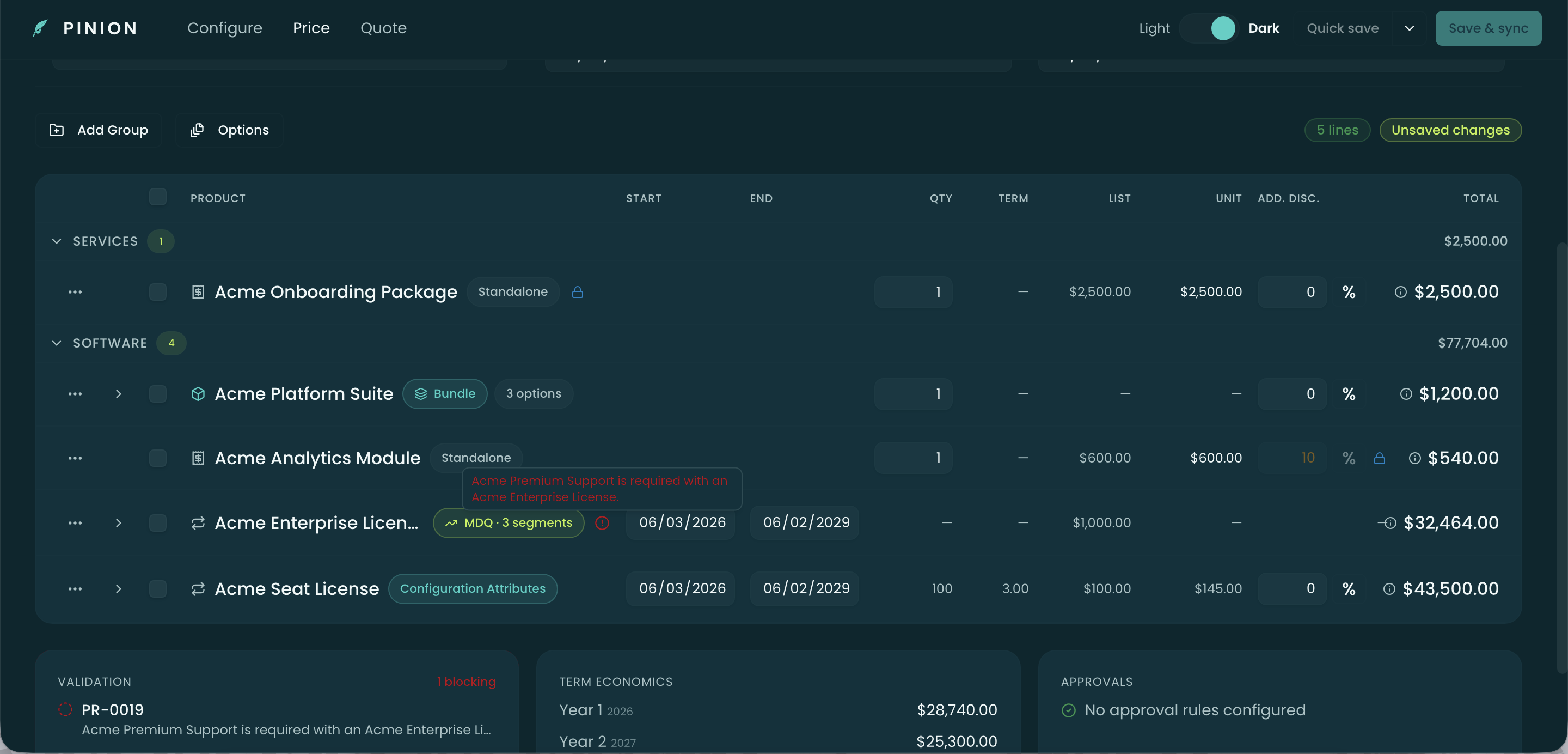
When a Validation rule is in error, the card lists the rule (by its number and message) with a blocking count, and the offending row carries a red badge with the same message on hover:
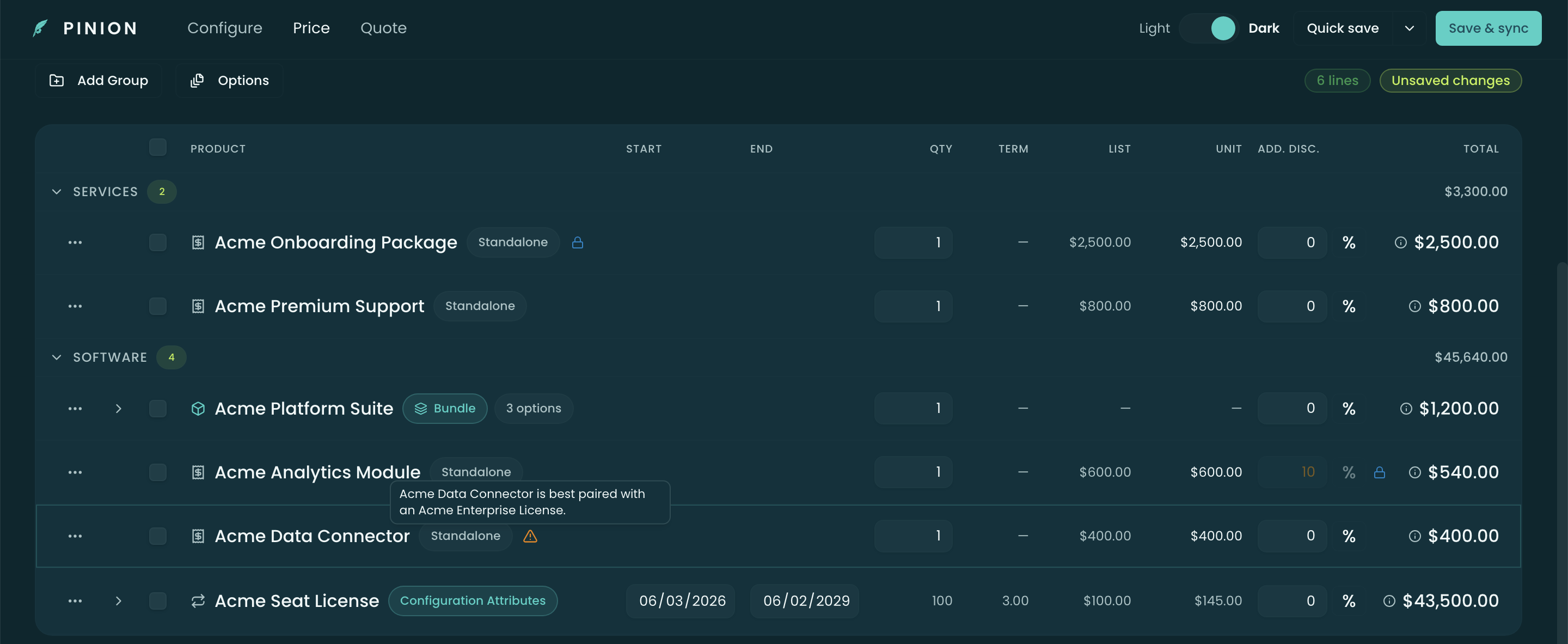
An Alert surfaces the same way but in amber, and does not block the save — it’s a nudge:
Locks
A lock badge means a rule has taken control of something so the rep can’t change it:
- Row locks (Selection rules) — a Selection rule can lock a product added, removed, or disabled. The row shows a lock icon and a tooltip naming the rule and the reason (“Added by rule: …”, “Removed by rule: …”, “Disabled by rule: …”); the row’s checkbox is disabled accordingly.
- Field locks (Pricing rules) — a Pricing rule can lock a line’s price or additional discount. The field renders read-only with a lock badge, and the tooltip names the rule. (You can see a locked discount on the Analytics Module row in Building a Quote → Bundle options — the 10% additional discount is rule-locked.)
A manual edit you make to an unlocked price or discount sticks — a default won’t silently overwrite it. A lock is the only thing that takes the field away from you.
Suggestions and default-selected
Not every rule cue is a hard lock. Two are soft — the rule nudges, but you stay in control:
- Suggestion sparkle — on an unlocked price or discount field, a sparkle means a Pricing rule is suggesting a value. Accept it by leaving it, or type your own — overriding clears the sparkle.
- Default-selected sparkle — in the Configure catalog, a sparkle on a product means a Selection rule auto-added it as a default. It’s a soft add: you can still uncheck it. (The Analytics Module carries this sparkle in Building a Quote → the Configure tab.)
Both sparkles reveal the firing rule’s name on hover, so a rep always knows where a suggested number or a pre-checked product came from.
Hidden products — the “hidden by rules” chip
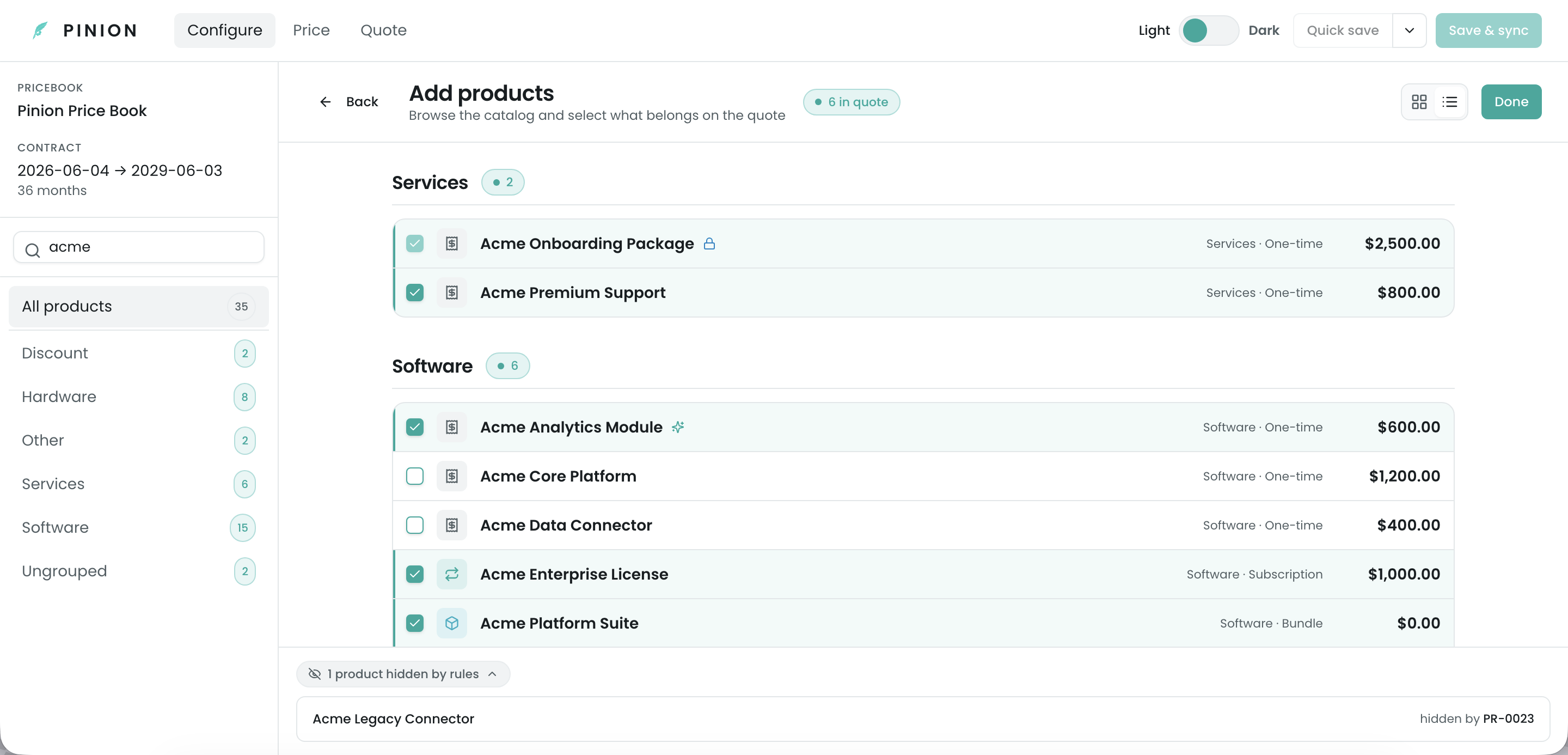
When a rule hides products from the catalog, the Configure tab shows a “N hidden by rules” chip at the bottom of the product list. Expand it to see each hidden product and the rule that hid it — so a rep is never left wondering why a SKU they expected isn’t there.
”Why this price?”
Every priced line has an info icon (ⓘ) next to its line total. Open it for the Price Waterfall — a step-by-step trace of how the price was built: from the list price down through every adjustment to the unit price, then quantity and term, ending in the line total:
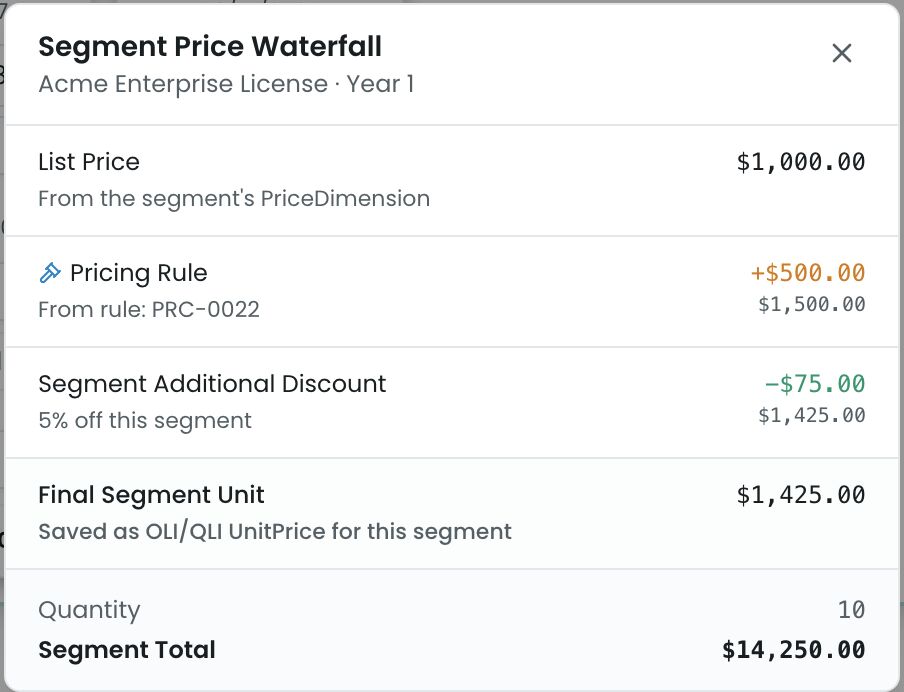
The waterfall reflects whatever drove the price — contract/contracted pricing, a discount schedule or block tier, a configuration-attribute blend, or a Pricing-rule adjustment — and reconciles to the cent with the line total. Where a Pricing rule adjusted the line, the discount field also carries an “Added by rule” affordance inline on the grid.
Every number on the panel can be checked against the other numbers on it. Each step states the movement it caused, the running price after it, and enough of its own workings to be verified without knowing anything the panel doesn’t show. The footer closes the loop: final unit price × quantity × term = line total, with quantity being the effective (billable) quantity the line actually prices on.
Bundles
A bundle’s price is not its parent product’s list price. It is built from the options you selected, so the trace opens on a Bundle Composition step instead, showing each option’s quantity, unit price and subtotal, and then the division that turns those into a per-unit figure:
Σ of 2 selected options = $4,200.00 ÷ 6 (Qty 2 × Term 3) = $700.00 per unit
The option rows are line totals (already scaled by bundle quantity and term) while the step itself is a per-unit price, so the step always spells out the divisor between them. This holds for Roll-Up and Itemized bundles alike — including Itemized, where the parent line legitimately carries $0 and the child lines carry the money.
Multi-dimensional (MDQ) lines
A line with per-year segments opens on a Segment Breakdown — one row per segment, plus a setup fee row where the product has one — and each row carries that segment’s own quantity, unit price and subtotal. The footer’s unit price is the blended rate across those rows, so it still multiplies out to the line total.
Each segment also has its own ⓘ. Opening it gives that segment’s full chain: its basis, any dimensionally-variable attribute value that changes its price (shown as its own Dimensional Attribute step), its annual uplift, any concession you applied to that segment, and its final unit price. For a segmented bundle the segment’s chain starts from the same Bundle Composition basis described above, uplifted for that year.
Every step moves the number by exactly what its label says: the Annual Uplift step lands on the running price ramped by the dimension’s uplift for that year, no more. If a saved segment price differs from what the labelled steps produce, the difference is shown as a separate Unexplained adjustment step rather than being folded into another label — so a “+10%” step never quietly carries a larger move.
Where a segment is prorated — it covers only part of its period, because a co-term truncated it or an amendment split it — the quantity step spells the scaling out as raw quantity × proration factor rather than showing only the scaled result, so you can see where the number came from. The factor is shown at its real precision: a one-day slice of a year reads × 0.0027, not a rounded-away × 0.00. A factor that displayed as zero next to a line charging real money would explain nothing, so it isn’t rounded. See MDQ — Segment Pricing.
Save gating
The two severities decide whether you can save:
- Validation errors disable Save & sync. The button is greyed and its tooltip names the first blocking rule. Bundle-configuration violations (unmet required options, option constraints, feature min/max) gate the save the same way.
- Alerts never block. You’ll see the warning, and the save proceeds.
This is the contract: if the Configurator let you save it, the rules are satisfied — and if it won’t, it tells you exactly which rule to address.
Related
- Building a Quote — where these badges appear in the flow (sparkles in the catalog, locks on the grid, the waterfall on each line).
- Overview & Launch — the workspace these surfaces live in.
- Rules · Pricing Rules — how the rules driving this feedback are authored.
- Rule Simulator — test which rules fire, and why, without saving.