Segment Templates
A multi-year (MDQ) deal often follows a familiar ramp — quantity doubles in year two, triples in year three; or each year carries a standard uplift and discount. Segment Templates capture that ramp shape once so a rep can apply it to a compatible line in one click instead of hand-entering every segment.
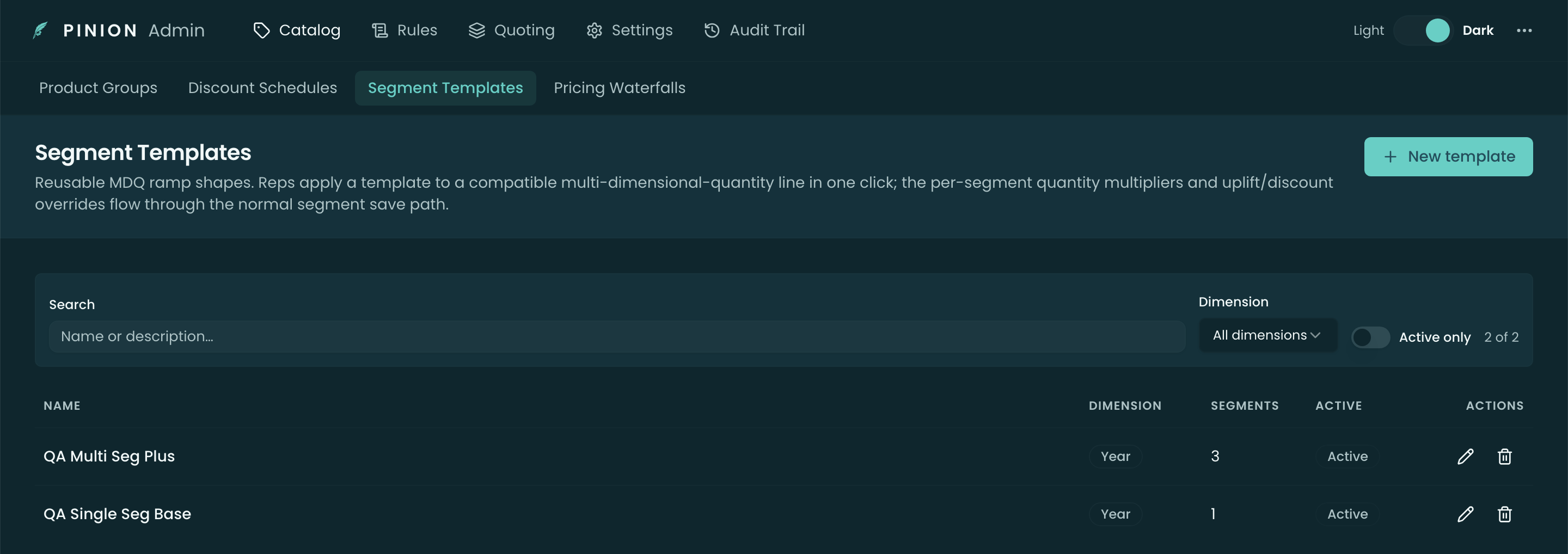
They’re org-wide, authored in the Pinion admin app → Segment Templates (/lwr/application/ai/c-pinionAdmin). The list shows each template’s Dimension, Segments (count), and Active state, with search + dimension/active filters.
Creating a template
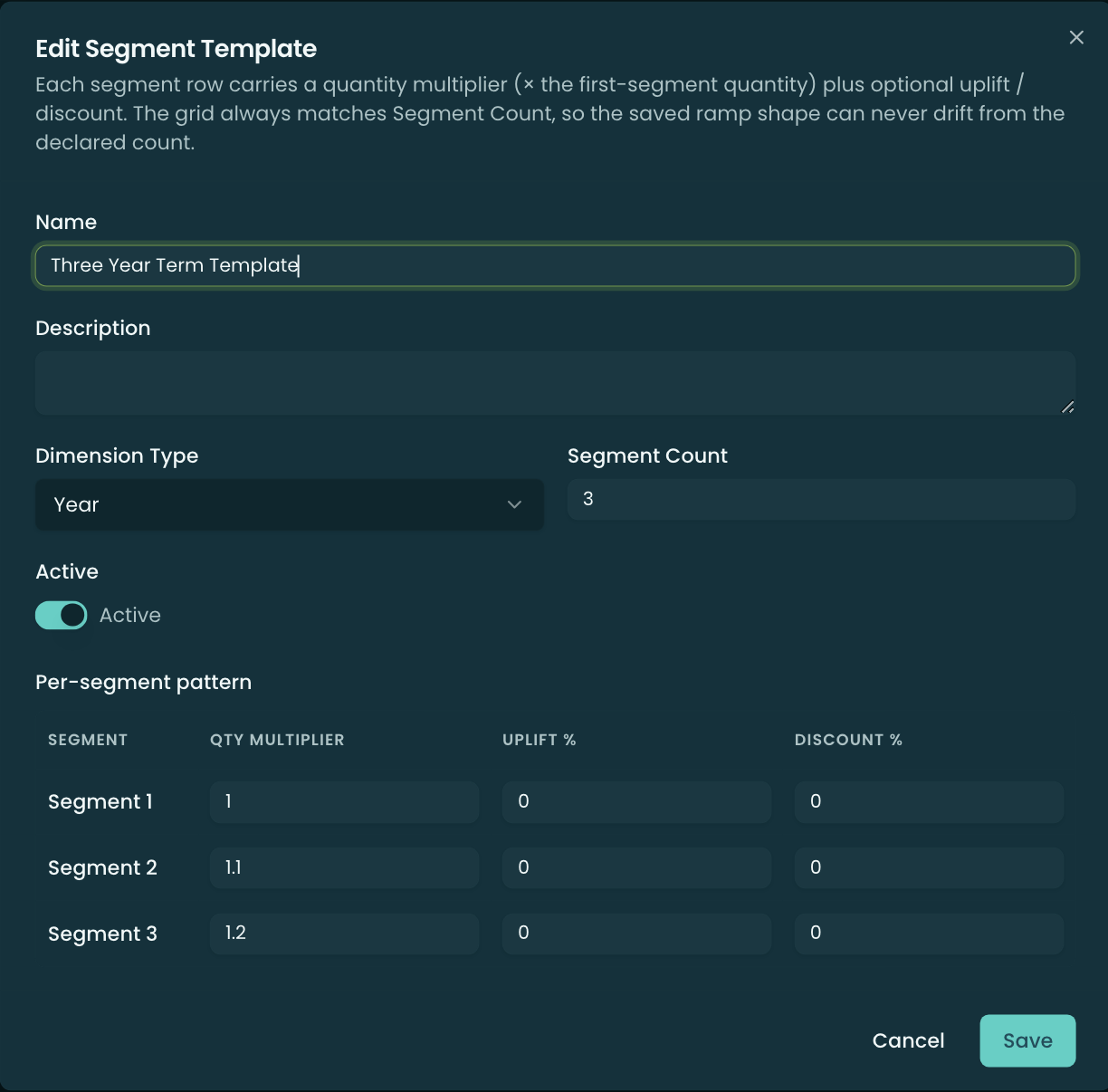
New template opens the editor:
- Name and Description.
- Dimension Type — Year, Quarter, or Month. (Templates ramp time dimensions; they don’t apply to Custom or One-Time.)
- Segment Count — how many segments the ramp covers. The pattern grid resizes to match.
- Active — inactive templates don’t appear for reps to apply.
Below that is the per-segment pattern grid — one row per segment:
- Qty Multiplier — the segment’s quantity as a multiple of the first segment’s quantity (×1, ×2, ×3 ramps quantity up the term).
- Uplift % — a per-segment price uplift.
- Discount % — a per-segment discount.
How a template matches and applies
A template is matched to a line by dimension type and segment count — a 3-segment Year template offers itself only on a Year-dimensioned line that has three segments. When a rep applies it (via the segment-template picker in the configurator), the pattern’s multipliers and uplift/discount overrides flow through the normal segment save path — exactly as if the rep had typed them — so there’s no separate “template pricing” code path to drift from the engine.
Related
- Dimensions — define the dimension type and per-segment behavior a template ramps over; a template’s dimension + segment count must match the line.
- Pricing Methods — how MDQ segment prices, uplift, and discounts compute.
- Configurator — Building a Quote — where a rep applies a template to a line.