Configuration Attributes
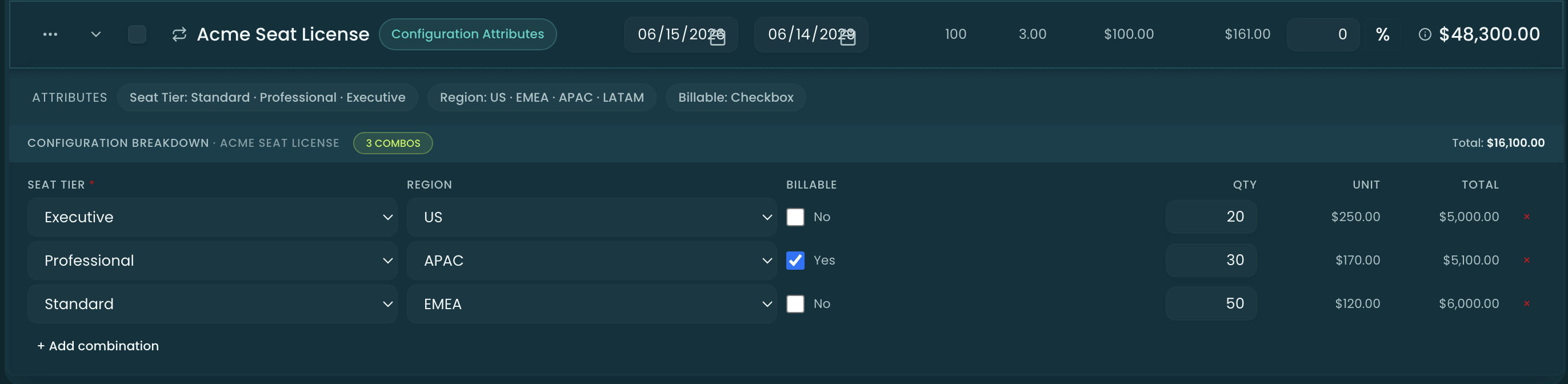
Some products need more than a quantity and a price — they need inputs. How many users? Which region? Is it billable? Configuration Attributes are how you capture that: the fields a rep fills in when configuring a product, defined by you per product, with the data type, validation, defaults, and pricing you choose.
You manage them in Product Manager: open a Product record, go to the Pricing tab, and select Configuration Attributes.
Defining an attribute
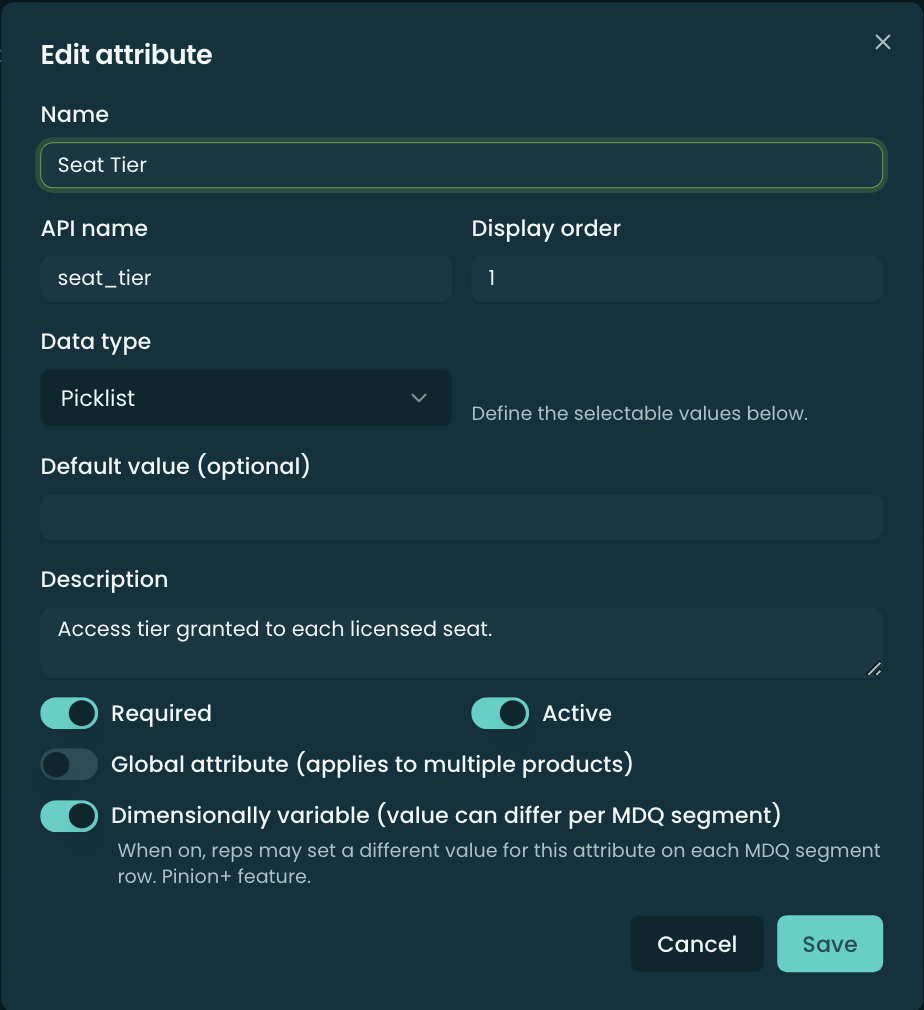
Each definition has:
- Name — the label the rep sees.
- API name — the stable key the value is stored under.
- Display order — where it sits among the product’s attributes.
- Data type — Picklist, Multi-Select Picklist, Text, Number, Date, or Checkbox. This drives how the rep supplies a value, which validation fields apply, and which pricing model the attribute uses.
- Validation (type-specific):
- Number — Min value, Max value, Decimal places.
- Date — Min date, Max date.
- Text — a Validation pattern (regex).
- Default value (optional), Description.
- Required and Active toggles.
- Global attribute — share this attribute across products (see Global attributes).
- Dimensionally variable (Pinion+) — let the value differ per MDQ segment (see Dimensional attributes).
How reps supply a value
The Data type decides what the rep sees in the configurator:
- Text / Number / Date — the rep types or picks a value, validated against the rules you set.
- Checkbox — a single on/off toggle.
- Picklist / Multi-Select Picklist — the rep chooses from values you define. Only these two value-backed types have a values list.
Pricing an attribute
Selecting or entering a value can adjust the line — this is config-attribute pricing. Each data type has its own pricing model. (How the result flows into the final line price is covered in Pricing Methods.)
Picklist / Multi-Select — per-value pricing
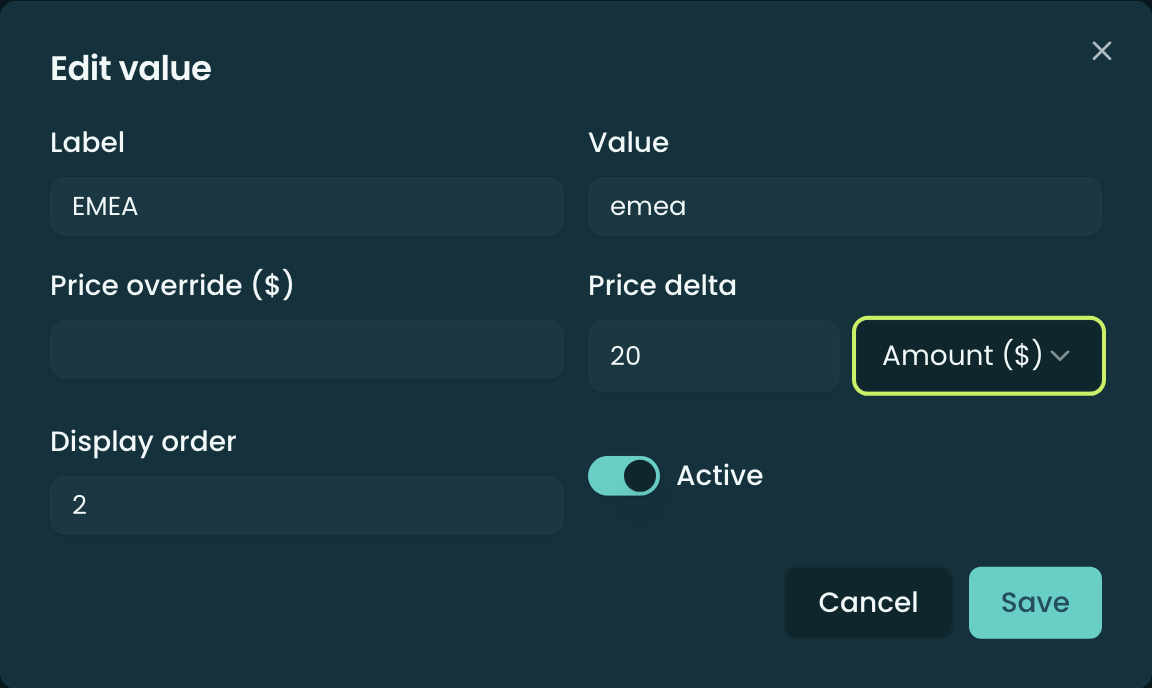
For a Picklist or Multi-Select attribute, manage its options under the definition. Each value has:
- Label (what the rep sees) and Value (the stored value);
- Price override ($) — set the line’s price for this value outright — or a Price delta to adjust it. The delta carries an Amount ($) / Percent (×) unit selector, so you can add a flat amount or a percentage;
- Display order and an Active toggle.
Number — pricing bands
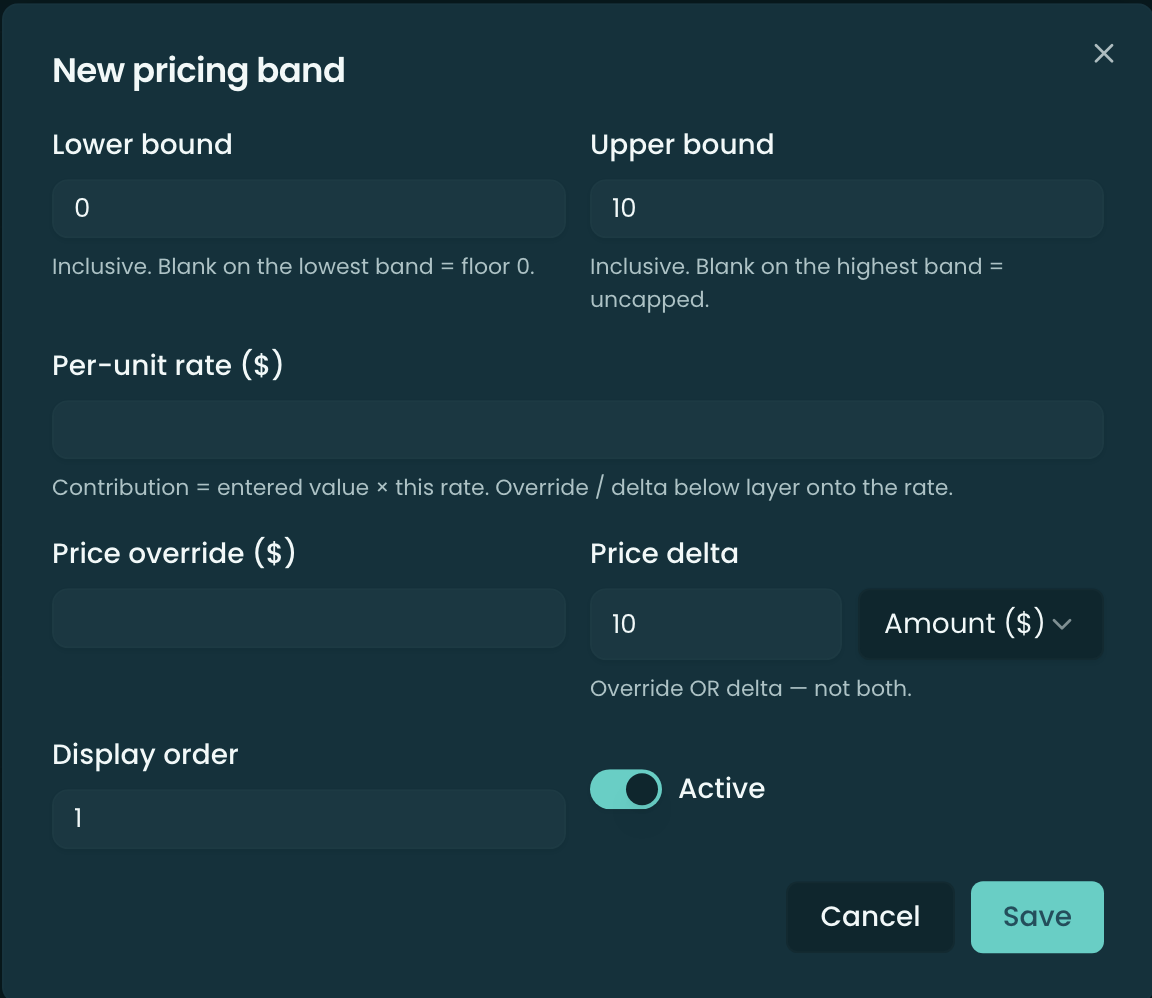
A Number attribute is priced with bands — ranges of the entered number, each with its own rate. Each band has:
- Lower bound and Upper bound — inclusive. Leave the lowest band’s lower bound blank for a floor of 0; leave the highest band’s upper bound blank for an uncapped top.
- Per-unit rate ($) — the contribution is entered value × this rate.
- An optional Price override ($) or Price delta (with the Amount/Percent unit) that layers onto the rate — set override or delta, not both.
- Display order and an Active toggle.
Checkbox — true / false pricing
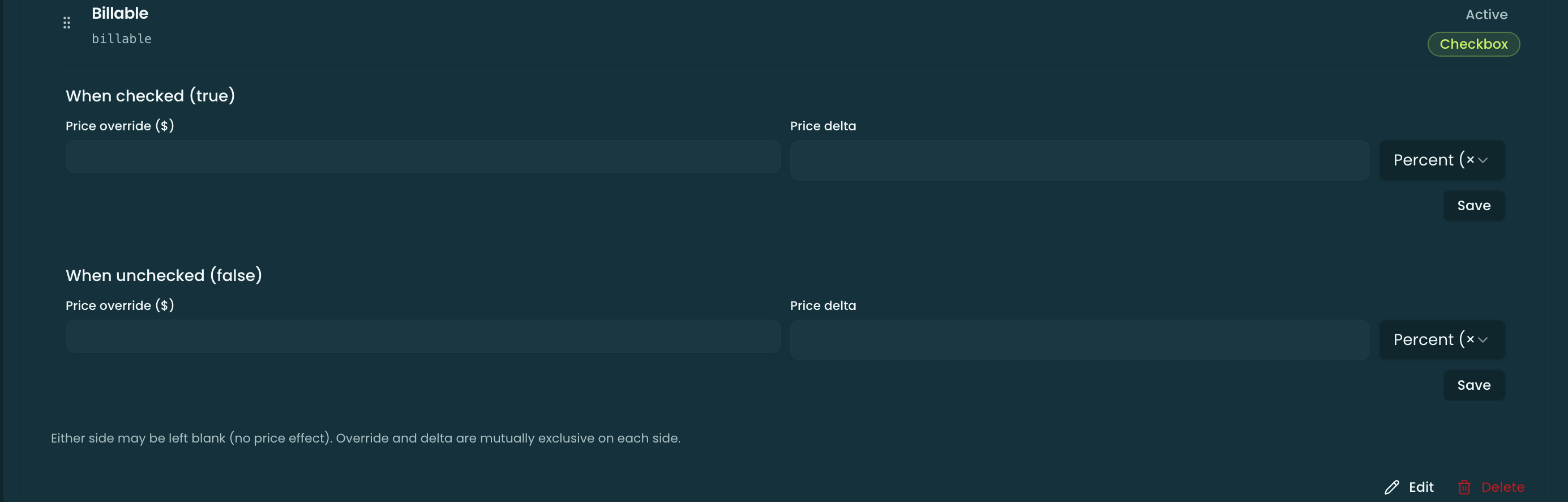
A Checkbox attribute prices two sides independently:
- When checked (true) — a Price override ($) or a Price delta (Amount/Percent).
- When unchecked (false) — the same pair.
On each side, override and delta are mutually exclusive, and either side may be left blank for no price effect.
Global attributes
Toggle a definition Global to reuse the same attribute across many products instead of redefining it on each. When global, an Apply to products picker lets you choose which products it’s assigned to; the definition’s primary product is always assigned.
Dimensional (per-segment) attributes — Pinion+
By default an attribute is set once per line. Mark a definition Dimensionally variable to let its value differ per segment of a multi-year / MDQ deal — for example a support tier or seat count that changes year over year. This is a Pinion+ capability and applies to products that have dimensions configured.
In the configurator’s segment grid, Pinion uses a first-segment-defines model:
- The first segment defines the value — its cell shows the actual attribute values and writes the line-level value.
- Subsequent segments default to “Inherit” (showing segment 1’s value, styled as inherited). A rep can override an individual segment, or clear the override to fall back to inherited.
- The effective value resolves segment override → segment 1 (line) → definition default.
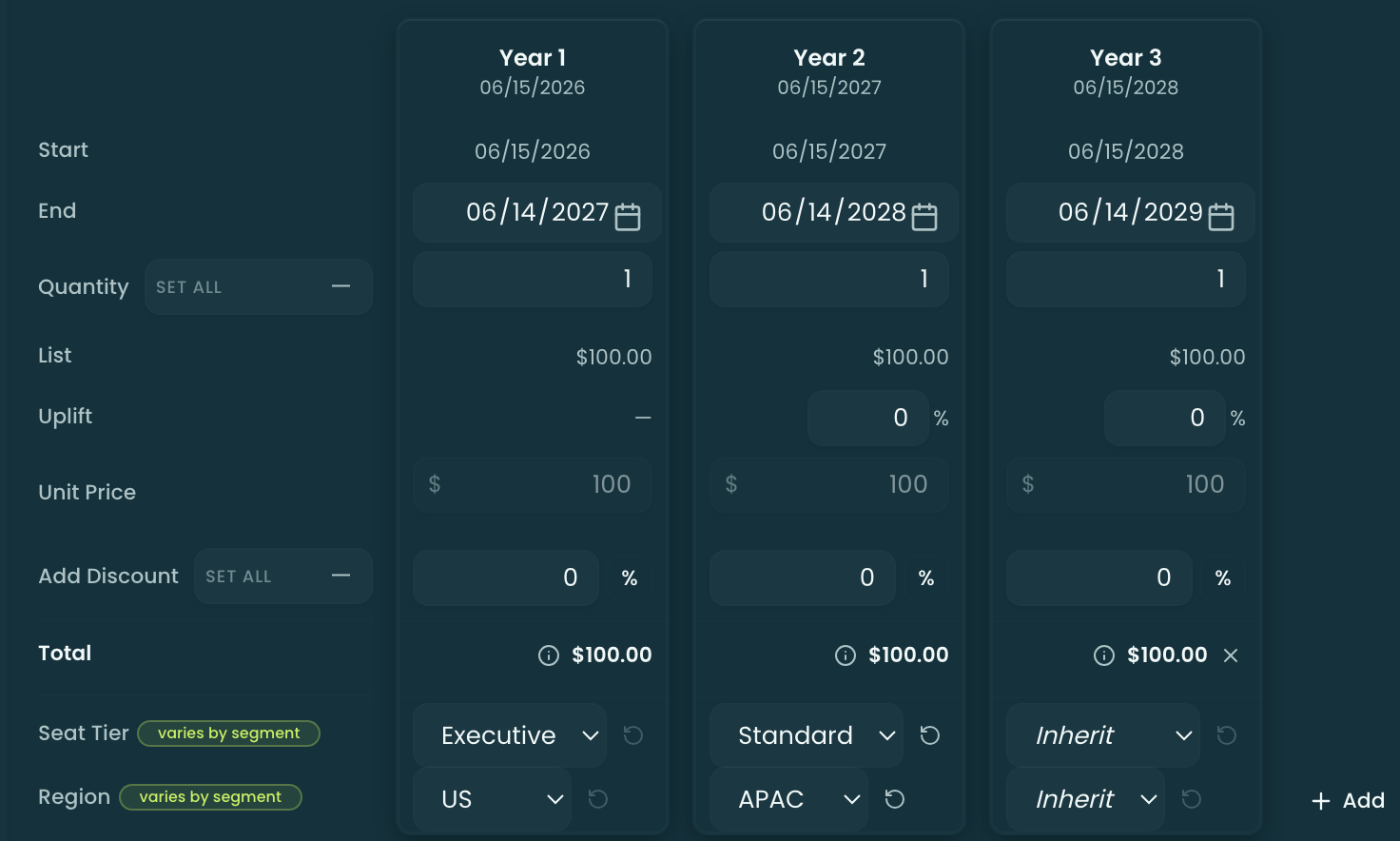
A value that carries a price (a per-value override or a percent delta) moves that segment’s price as soon as it is picked: the attribute prices the segment’s list, the dimension’s annual uplift ramps on top of the result, and each segment’s Total in the grid updates live. The segment’s Price Waterfall (the ⓘ on the segment) shows the pick as its own Dimensional Attribute step, so the year-two number reads List → Dimensional Attribute → Annual Uplift → Final rather than an unexplained jump.
The first segment’s pick is saved with the line and comes back after Save & sync and a reload — the segment control shows the saved value, later segments still inherit it, and the waterfall keeps its Dimensional Attribute step.
Activating and removing
- Toggle a definition, value, or band Active / Inactive — inactive ones stop applying without losing the definition.
- Removing a definition removes it cleanly; you don’t have to delete its values or bands first.
Related
- Overview — how Configuration Attributes fit with the rest of catalog & pricing setup.
- Pricing Methods — how per-value, Number-band, and checkbox pricing flow into the line price.
- Configurator — Building a Quote — where reps fill in these attributes.