Using the tools
Once you’re connected, you don’t call the tools directly — you ask your assistant a question, and it picks the right tool (and chains several when needed). Pinion ships a growing set of tools. Most read (they answer questions); several are actions that change state — submitting for approval, deciding one, creating a renewal or amendment, generating a PDF, logging a follow-up. Every tool runs as you, and every action asks you to confirm first, so a tool can only ever do what you could already do in Pinion yourself.
At a glance
The tools group into five areas. Each row’s Salesforce action label is the name an admin adds to the MCP server in setup; rows marked (action) change state.
Find & explore (read)
| Tool | Salesforce action label | What it answers |
|---|---|---|
| Find deals | Pinion: Find deals (discovery) | ”What deals do I have? What’s closing this month?” — your deals, no record Id needed. The usual starting point. |
| Pipeline summary | Pinion: Pipeline summary (what's my number) | ”What’s my open pipeline?” — totals, weighted pipeline, and a by-stage breakdown. |
| Get products | Pinion: Get products (catalog discovery) | ”What products/bundles do we have?” — browse the catalog, or drill into one product’s features/options/attributes. |
| Get deal line items | Pinion: Get deal line items (quote state) | ”What’s on the Acme opportunity?” — a deal’s persisted lines, bundle children + MDQ segments nested. |
Pricing & rules (read + action)
| Tool | Salesforce action label | What it does |
|---|---|---|
| Estimate a price | Pinion: Estimate a price (what-if) | ”What would the Workplace Bundle cost at qty 50 with 10% off?” — a what-if estimate, nothing saved, priced by the real engine. |
| Explain a price | Pinion: Explain a price (waterfall) | ”Why is this line this price?” — the waterfall from list to net, per MDQ segment, to the cent. |
| Simulate product & pricing rules | Pinion: Simulate product & pricing rules | ”Which rules drove this deal — or why isn’t my rule firing?” — the per-rule condition trace. |
| Look up a contracted price | Pinion: Look up a contracted price | ”Does Acme have a negotiated price on Product X?” — the contracted unit price + its source and dates. |
| Configure & price a deal (action) | Pinion: Configure & price a deal (Save & Sync) | ”Save this quote to the Acme deal” — builds/edits a configuration and Save & Syncs it onto the deal’s line items, through the real save path. |
Approvals (read + action)
| Tool | Salesforce action label | What it does |
|---|---|---|
| Get my approvals | Pinion: Get my approvals | Your own pending approval queue, numbered. |
| Get approval detail | Pinion: Get approval detail | The full context for one pending request (what, why, who, SLA, prior comments). |
| Get approval status | Pinion: Get approval status | A deal’s overall status + the pending approvers and the rule behind each. |
| Submit for approval (action) | Pinion: Submit for approval | Submits a deal’s draft configuration for approval (creates the request, notifies approvers). |
| Decide approval (action) | Pinion: Decide approval (approve / reject) | Records your approve/reject on a request assigned to you. |
Accounts, contracts & renewals (read + action)
| Tool | Salesforce action label | What it does |
|---|---|---|
| Brief me on an account | Pinion: Brief me on an account | TCV/ARR, active contracts, renewals, open amendments, notable negotiated prices. |
| Get contract lines | Pinion: Get contract lines (subscriptions + assets) | One contract’s recurring subscription lines and the account’s one-time assets. |
| Contract revenue metrics | Pinion: Contract revenue metrics (MRR / ARR / TCV) | MRR/ARR/TCV for one contract or rolled up for an account. |
| Renewal forecast | Pinion: Renewal forecast | Renewing contracts, dates, forecast ARR, and uplift over a window. |
| Create renewal (action) | Pinion: Create renewal opportunity | Creates a renewal Opportunity from a contract (priced by the renewal engine). |
| Create amendment (action) | Pinion: Create amendment opportunity | Creates an amendment (mid-term change) Opportunity from a contract. |
Activities & documents (read + action)
| Tool | Salesforce action label | What it does |
|---|---|---|
| Get activity timeline | Pinion: Get activity timeline (last contact / next step) | A deal/account/contract’s tasks & events — last contact, next step, overdue follow-ups. |
| Log a follow-up (action) | Pinion: Log a follow-up (create a task) | Creates a task on a deal/account/contact (“remind me to follow up Friday”). |
| Generate quote / proposal PDF (action) | Pinion: Generate quote / proposal PDF | Renders and saves a quote/proposal PDF on the deal (watermarked draft until synced). |
Ask in plain language
The tools are built to be driven by natural questions — ask the way you’d ask a colleague:
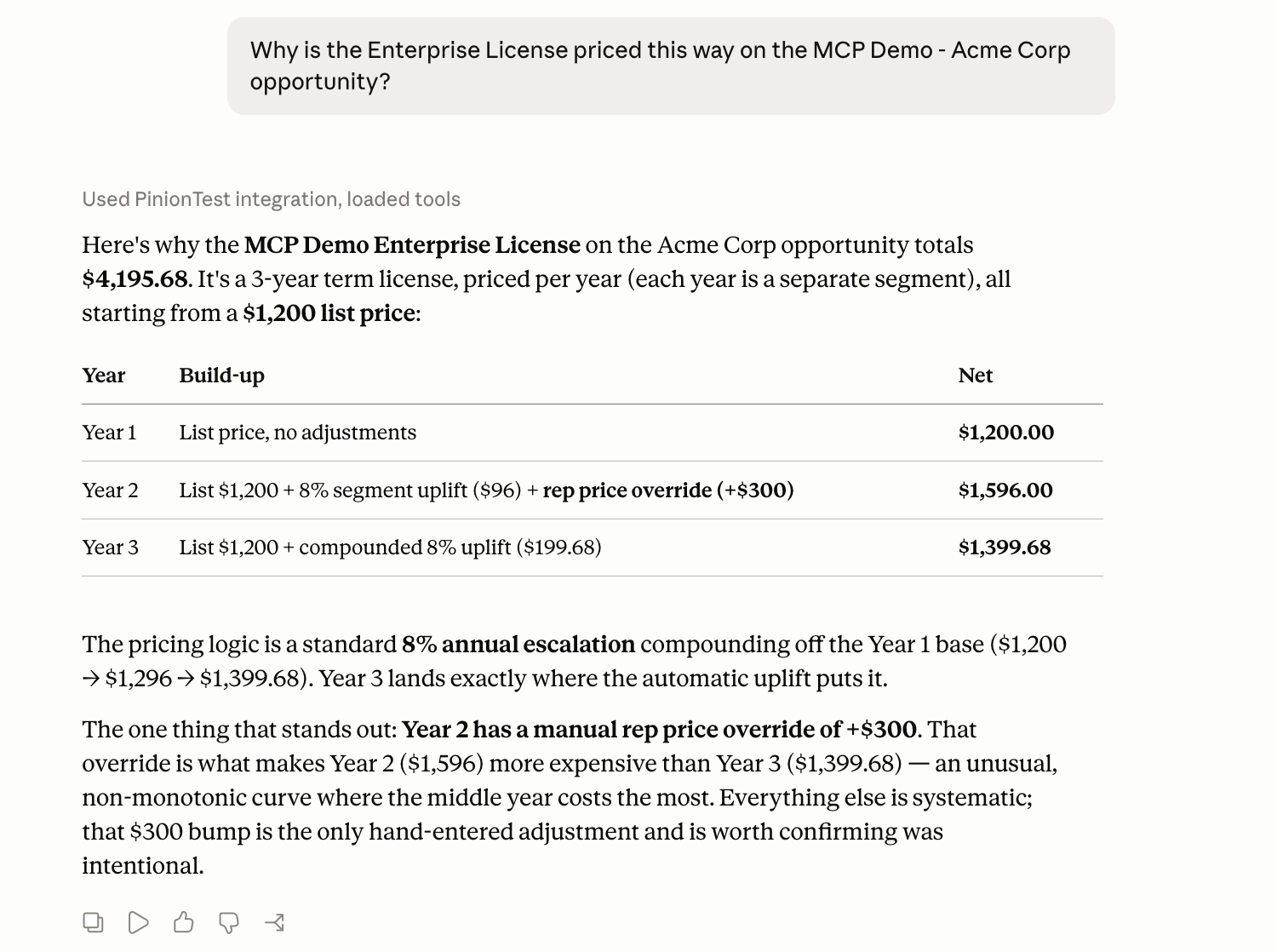
“Why is the Enterprise License priced this way on the MCP Demo – Acme Corp opportunity?”
Behind that one question the assistant chains two tools: it finds the deal’s lines by name, matches “Enterprise License” to a specific line, then explains that line’s price.
The tools
Find & explore
Find deals — the conversation entry point: it finds the deals (Opportunities) a rep is working on without needing a record Id. Every filter is optional and composes — owner scope (mine / all / a rep), account, stage, close-date window, name, open-only, max results. With no filters it returns your open deals, soonest close first — each row with the deal name, account, stage, amount, close date, probability, owner, and a click-ready link. Then drill in (Get deal line items, Get approval status, the quote-PDF tool, or Brief me on an account).
Pipeline summary — the rollup behind Find deals: totals, not rows. Takes the same filters and returns total open amount, weighted pipeline (amount × probability), deal count, a by-stage breakdown, and the next close date. Answers “what’s my open pipeline?” / “how much is in Negotiation?”. Pair it with Find deals to go from the number to the deals behind it.
Get products — finds products and bundles in the catalog. List mode (blank reference) browses; Detail mode (a product name/Id) returns that product’s bundle features/options and configuration attributes. Ambiguous names return candidates.
Get deal line items — resolves a deal reference (Opportunity/Quote name or Id, or a saved configuration’s name) to that deal’s persisted line items — product/bundle name, role (bundle parent / child / segment / standalone), quantity, unit price, line total — with bundle children and MDQ segments nested. Totals reconcile to the Products tab to the cent. Ambiguous names return candidates.
Pricing & rules
Estimate a price — a what-if estimate: “what would this cost?” for one or more products without saving anything. Give it products (with a quantity and an optional per-line discount % or unit-price override) and it returns the full priced waterfall — list → uplifted → net unit price, per-line totals, bundle parent/child subtotals, and a grand total — computed by the same pricing engine a real save uses, so the estimate matches what a Save & Sync would persist to the cent. Use it to compare quantities or discounts before building a real quote. A bundle auto-includes its required and default options. For a metered product, the estimate also attaches a usage projection — give it an estimated usage and it returns the projected overage above the entitlement (computed by the same rate-card kernel a Save & Sync uses), flagged display-only and non-contractual; omit the usage and it projects at the entitlement (a $0-overage baseline) so the agent knows to ask for a real number. (v1 note: MDQ / segmented / block-priced / percent-of-total products aren’t supported yet — the tool returns an honest note rather than a wrong number.) The companion to Explain a price: Estimate prices an unsaved what-if, Explain breaks down an already-saved line.
Explain a price — explains how one saved line was priced: the ordered waterfall from list price through each adjustment (contracted price, volume/term discount, additional/manual discount, promotion) to the net, reconciled to the cent. MDQ-aware (per segment, with compounding uplift), and honest by construction — an unattributable step surfaces as an honest residual rather than a wrong split. Works for Opportunity and Quote lines.
Simulate product & pricing rules — a dry run: simulates the active product & pricing rules against a deal and returns which rules fired and which didn’t, and why — the per-rule condition trace with both sides resolved. Actions are never executed. The partner to Explain a price: that explains the price, this explains the rules behind it.
Look up a contracted price — the negotiated price for one or more products at an account: per product, the contracted unit price (fixed, percent-off, or amount-off), the source record, and its effective dates — or a clear “no contracted price.”
Configure & price a deal (action) — the tool that actually commits a quote: it builds or edits a deal’s product configuration and Save & Syncs it onto the deal’s line items. It’s the natural finish to Estimate a price — hand it the exact config you just quoted (an “applied config” handle from Estimate) and the config you quoted is the config that saves, or give it a fresh list of lines. Use modify mode to edit an existing saved configuration (add/edit/remove lines; anything you don’t mention is preserved). It’s built to be safe on Pinion’s most important path:
- It reuses the exact Save & Sync the configurator UI uses — the same pricing engine, the same rules, the same limits. It doesn’t re-implement any pricing; the server recomputes the authoritative prices on save, so tampered inputs can’t persist a wrong number.
- It returns the final saved line items read back from the records (never your inputs), plus the authoritative grand total — reconciled to the cent, exactly what the Products tab shows.
- It respects approvals. If the configuration needs approval it’s saved as a Draft but not synced — the tool tells you to submit it (Submit for approval) and apply again once approved. It never auto-submits, and it never sneaks a deal past the approval gate.
- Confirms first, like every action, and runs as you — so it can only save a deal you could save yourself in the configurator.
Approvals
Get my approvals — your own pending queue as a numbered list (deal, amount, requester, the rule that fired, submitted/due dates).
Get approval detail — the full context for one pending request: what’s being approved, why it tripped (firing rule + condition trace), who submitted it, the status, SLA, and prior comments. Use it after Get my approvals — “details for #3.”
Get approval status — a deal’s approval state: overall status, who still needs to approve, and which rule triggered each pending approval, per configuration.
Submit for approval (action) — submits a deal’s submittable Draft configuration for approval. If a rule matches, it creates the request(s), marks the configuration Pending, and notifies the approver(s); if no rule matches, it returns an honest “no approval required — you can sync” (not an error); if already synced or pending, a clear guardrail message with no duplicate. Confirms with you first.
Decide approval (action) — approves or rejects a request assigned to you, with a comment. Records your decision, advances or terminates the chain, and notifies the deal owner. Tightly bounded: only your own requests (the server refuses someone else’s), you confirm first, and a comment is required to reject.
Accounts, contracts & renewals
Brief me on an account — a structured brief: TCV and ARR/MRR, active contracts, upcoming/in-flight renewals with forecast amounts, open amendments, and notable negotiated prices. A natural starting point for an account — then drill in.
Get contract lines — one contract’s line detail: its recurring subscription lines (product, quantity, unit price, total, term, bundle role + parent, MDQ segment label/index) and its account’s one-time assets (scoped to the account, which the tool flags). Accepts a Contract Id or Number.
Contract revenue metrics — MRR, ARR, and TCV for one contract or rolled up for an account across its active subscriptions and contracts.
Renewal forecast — one row per renewing contract (contract, renewal date, current recurring amount, forecast ARR, uplift) plus totals over a window. Leave dates blank for “next quarter.” It never creates renewal opportunities — it forecasts.
Create renewal (action) — creates a renewal Opportunity from a contract’s active subscriptions, with renewal line items priced by the renewal engine (the same engine the Pinion UI uses). Pass a Contract Id or Number. Idempotent — if the contract already has a renewal, the existing one is returned (no duplicate). Confirms with you first.
Create amendment (action) — creates an amendment (mid-term change) Opportunity from a contract’s subscriptions and one-time products, with line items priced by the amendment engine. A contract can have several amendments over its life — each call creates a fresh one. Confirms with you first.
Activities & documents
Get activity timeline — the activity story of a deal, account, quote, or contract — the standard Tasks and Events logged against it — so you can answer “when did we last talk to them?”, “what’s the next step?”, “any overdue follow-ups?”. Returns a chronological timeline plus summary fields (last activity date, next activity/subject, open + overdue counts).
Log a follow-up (action) — creates a standard Task on a deal/quote/account/contact — “remind me to follow up on Acme Friday.” Give it a record, a subject, and optionally a due date and type. Assigned to you by default; created as you (so only on records you can see, and only if you can create tasks). Confirms first. A follow-up logged here shows up in the activity timeline.
Generate quote / proposal PDF (action) — renders and saves a quote/proposal PDF for a deal (a GeneratedQuote__c record plus a PDF file under Files on the deal). If the configuration isn’t synced, the PDF is a watermarked draft (this tool never removes the watermark). Optionally takes a template name; otherwise the routed/default template is used. Confirms first.
How they chain
The tools hand off to each other, so a broad question drills to a precise answer or a completed action:
- Discover → drill → explain. “What’s closing this month?” (Find deals) → open one deal’s lines (Get deal line items) → “why is this line priced this way?” (Explain a price).
- Quote → commit. “What would this cost?” (Estimate a price) → “save it to the deal” (Configure & price) — the quoted config is the saved config.
- Account → contract → renew. “Brief me on Acme” (Brief me on an account) → its contract lines (Get contract lines) → “create the renewal” (Create renewal).
- Approvals, end to end. Get my approvals → Get approval detail → Decide approval. And a rep’s own side: Submit for approval → track with Get approval status.
- Price and rules. Explain a price says what; Simulate rules says which rules shaped it.
- Follow through. Get activity timeline shows the next step; Log a follow-up creates one; Generate quote PDF produces the document.
You don’t orchestrate this — the assistant chains the tools from your question. When a step is an action, it pauses for your confirmation before it runs.
What they can and can’t do
| ✓ They can | ✗ They can’t |
|---|---|
| Read the persisted state of deals, pipeline, prices, approvals, contracts, renewals, and activities | Show you data you couldn’t already open in Pinion (your CRUD/FLS + sharing apply) |
| Take actions you could take yourself — configure & price (Save & Sync) a deal, submit/decide approvals, create a renewal or amendment, log a task, generate a PDF | Take any action without your confirmation, or one you couldn’t perform yourself |
| Save a deal through the exact same Save & Sync path the configurator uses — with the server’s authoritative price recompute | Persist a tampered or hand-edited price — the server recomputes on save, so only the authoritative price sticks |
| Price a renewal or amendment through the same engines as the Pinion UI | Bypass Pinion’s rules — a config that needs approval saves as a Draft, not synced, and pricing + watermarks still apply |
| Decide only your own approvals; act only on records you can see | Decide someone else’s approval, or remove a draft PDF’s watermark |
| Explain a price to the cent and trace which rules fired | Run for a base-tier org (PinionPlus required — you’ll get an upgrade message) |
More tools coming
The set is growing quickly — from a couple of read tools to a full span of read and action tools across the deal, approval, contract, and activity lifecycle. New tools follow the same pattern: run as you, do only what you could do in Pinion, and confirm before acting. As more ship, they’ll appear here.
Related
- Overview — what MCP is and the security model.
- Setting up the MCP server — publish these tools and connect a client.
- Pricing Methods ▸ MDQ — the per-segment uplift the Explain-a-price tool narrates.
- Approvals ▸ My Approvals — the queue the approval tools read and act on.