Submitting & Recalling
This is the rep’s side of an approval: getting a deal that triggered an Approval Rule into the approval queue, and managing it while it’s there. You do this on the deal — from Product Display or from the configurator’s Approvals panel — not the Approvals app (that’s where approvers work).
Where the controls are
There are two rep-facing surfaces, and they share the same engine:
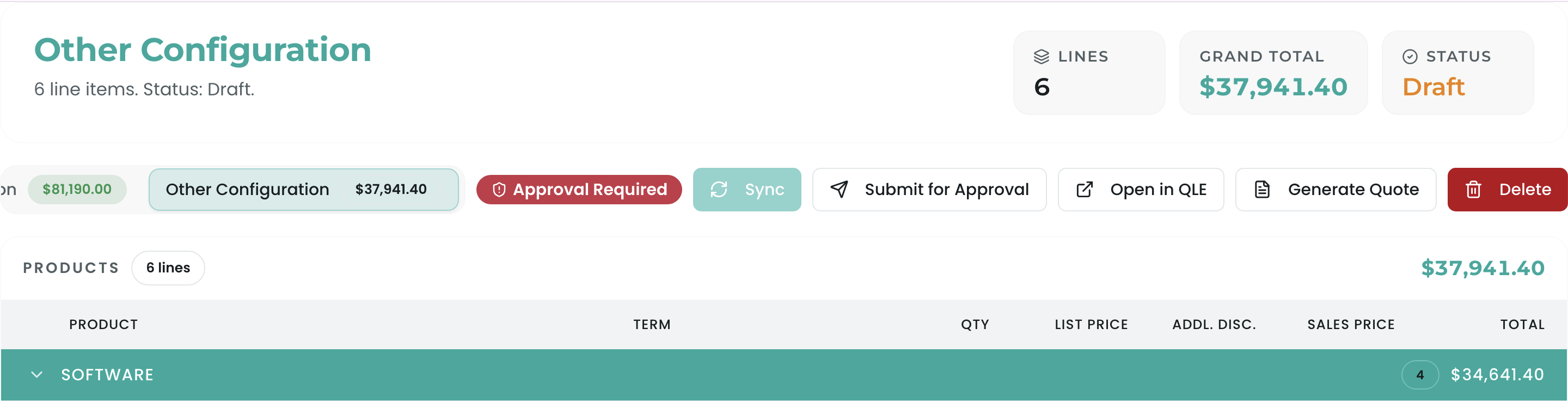
- Product Display (opened from the record’s Product Display panel — Open Product Display, a new tab on the current release) — shows each configuration’s approval state (an Approval Required badge) with a Submit for Approval / Resubmit for Approval button. An Open in QLE button here takes you into the configurator and its Approvals panel.
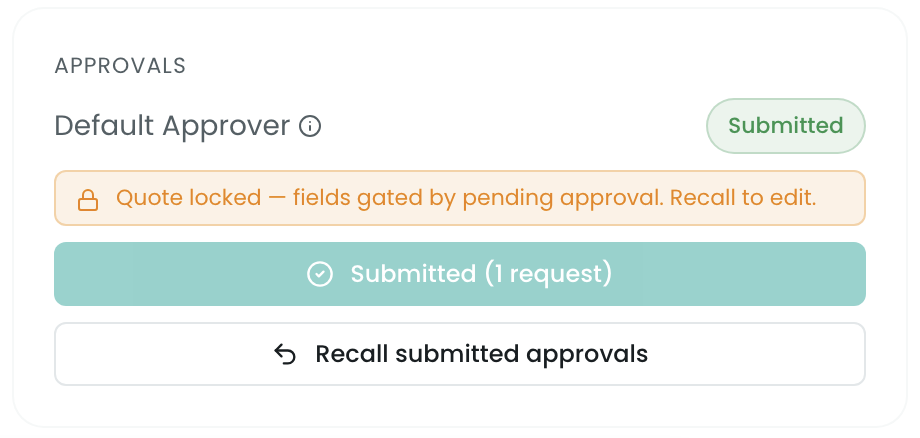
- The configurator (QLE) → Approvals panel — a richer panel that lists the rules with Required / Submitted chips, a Submit for approval button, a lock banner when pending, and a Recall submitted approvals button.
Either surface submits the same way; recall lives in the configurator’s Approvals panel.
When a configuration needs approval
After you save a configuration, its approval state shows up. The states a rep sees:
| State | What it means | What you can do |
|---|---|---|
| Not required | Matches no active rule | Sync it — no approval needed |
| Required | Matches a rule; not yet submitted | Submit for Approval |
| Submitted / pending | Submitted; waiting on approvers | Wait, or Recall to edit |
| Approved | All required approvers signed off | Sync it to the deal |
| Rejected | An approver sent it back | Fix it, then Resubmit |
| Synced | Already synced to the deal | — |
Submitting for approval
When a configuration is Required, click Submit for Approval (Product Display) or Submit for approval (configurator Approvals panel). Submission:
- Evaluates the active Approval Rules against the saved configuration (not unsaved edits),
- Creates an approval request per firing rule and routes each to its approver(s) in the chain’s order (sequential or parallel, with SLAs),
- Locks the fields the rules test on the deal (the configurator panel shows a “Quote locked — fields gated by pending approval” banner),
- moves the configuration to Submitted / pending.
Submitting an amendment
An amendment opens with the contract’s current lines already in place and already synced — that baseline is the deal’s synced configuration, and it books nothing until you change something. Editing and submitting an amendment works like any other deal, with one thing worth knowing:
-
Edit the lines in the configurator (a quantity, a price, an added or removed product).
-
Quick save. Because the synced baseline is never overwritten, your edit is saved as a new draft configuration — it appears in the Options menu (for example Amendment Baseline (edited)) and becomes the selected configuration. The baseline stays synced and untouched. (A Quick save with no changes saves nothing new.)
-
Submit for approval from the Approvals panel. What actually gets evaluated is the amount the amendment books — the change against the contract, not the full value of the amended configuration. An untouched amendment books $0 and needs no approval; a rule on
Opportunity.Amount > 1,000fires on a $2,400 increase, and a rule at> 4,500does not, even if the whole amended bundle is worth more than that. An amendment that takes effect part-way through the contract books the remaining-term share of the change (a $2,400 increase with 76% of the term left books about $1,824). That is the number the approver’s queue, the “Why approval is required” trace and the approval request itself carry. If the saved configuration needs approval, the Approvals panel says so and offers Submit for approval even when nothing else is listed. -
Once approved, or straight after the Quick save when nothing needs approval, Save amendment (Save & sync) on that draft. The draft becomes the synced configuration, the previous baseline drops back to a draft, and the Opportunity amount is the change the amendment books.
A second Quick save on the same draft updates it in place — you won’t get a new option each time you save.
While it’s pending
Once submitted, the configuration sits in Submitted / pending until the chain resolves. The rule’s tested fields are locked on the deal — editing one is blocked with a message naming the rule. When the chain resolves: Approved → you can sync it; Rejected → it returns to you. You’re emailed on the final decision. Approvers act in their My Approvals queue.
Resubmitting after a rejection
A rejected configuration shows Resubmit for Approval. Make the changes the approver flagged (their rejection comment says what), save, and resubmit — it runs the rules again and re-routes the chain. The decision history is in the Trace.
Recalling a pending submission
Need to pull a submission back before a decision — to fix a number without waiting for a reject? Use Recall submitted approvals in the configurator’s Approvals panel (it appears once a configuration is submitted, next to the lock banner). Each rule defines a recall scope (set by your admin on the chain — see Approval Rules ▸ Policy) that controls what the recall invalidates:
- No recall — the rule can’t be recalled; wait for the decision.
- Only this step — just the current pending step.
- Downstream only (default) — the pending step and everything after it, preserving approvals already given.
- Whole chain — the whole chain re-evaluates from the top on resubmit.
After a recall, the configuration returns to an editable state; fix it and resubmit.
Related
- Overview — the full lifecycle and who does what.
- My Approvals — the approver’s side.
- Notifications & Locks — which fields lock and the emails that fire.
- Approval Rules (§3) — authoring the rules, chains, and recall-scope policy.