Product Groups
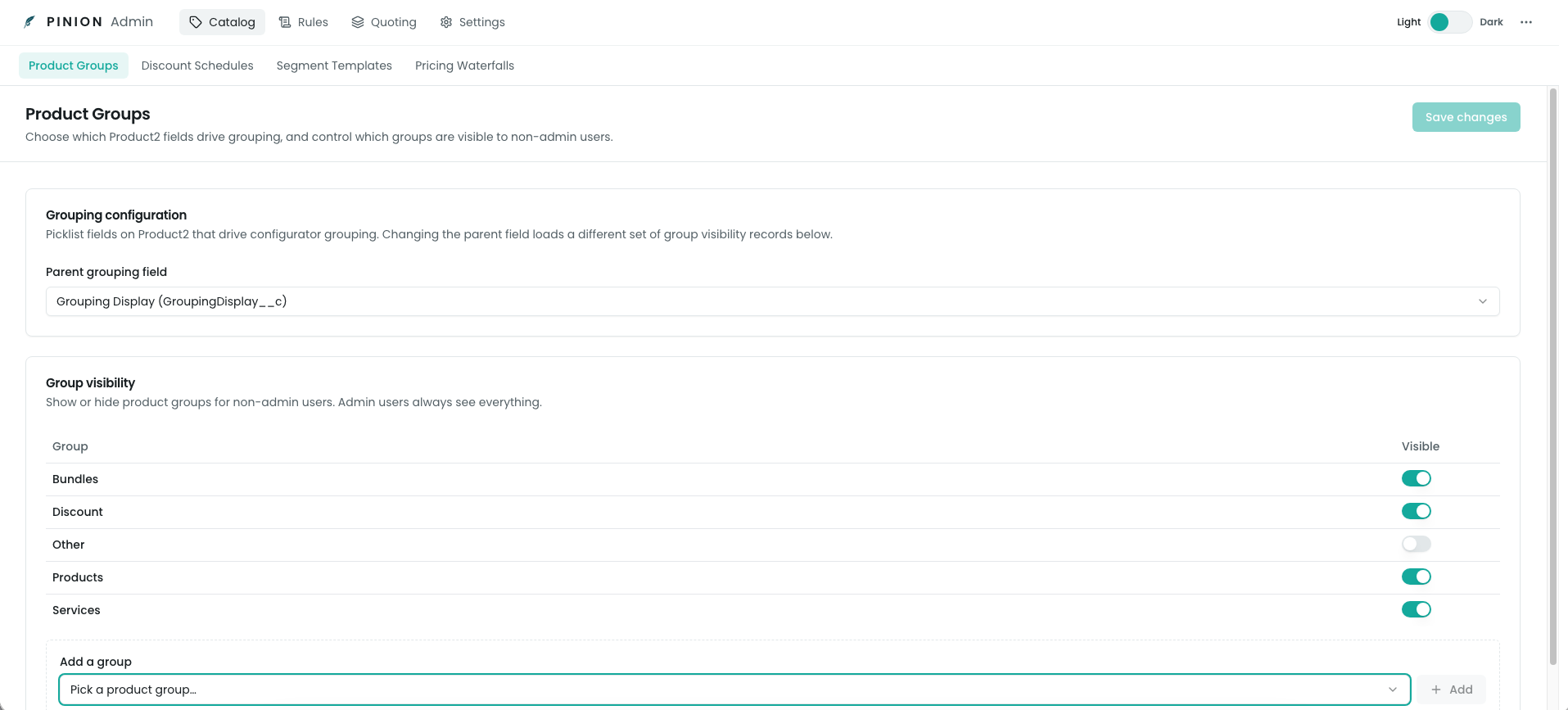
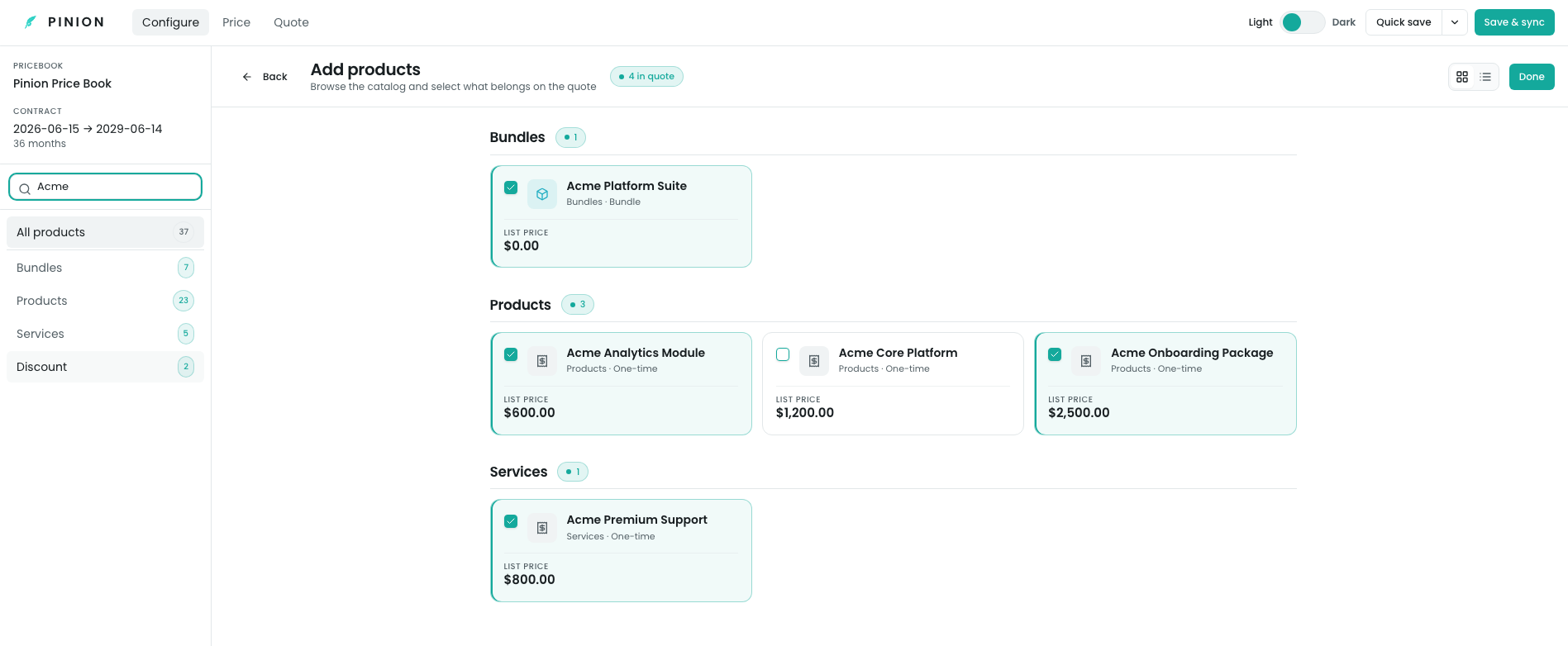
When a rep opens the Configurator’s Configure tab, the catalog isn’t a flat list — products are organized under group headings. Product Groups is where you decide what those headings are and which ones reps can see.
Two things are controlled here:
- What defines the grouping — which field on the Product record buckets products into groups.
- Which groups are visible — a per-group on/off switch that shows or hides a group from reps.
You manage both on the Product Groups page in the Pinion admin app.
Choosing the grouping field
Products are grouped by the values of a single picklist field on the Product. Out of the box that’s Pinion’s grouping-display field, but you can point it at any picklist field on the Product — for example a “Product Family”, “Category”, or a custom field of your own.
At the top of the page, pick the field from the grouping field selector. Every distinct value of that field becomes a group.
Showing and hiding groups
The table lists every group derived from the grouping field, each with a visibility toggle:
- Visible — reps see this group (and its products) in the Configurator catalog.
- Hidden — the group doesn’t appear for reps.
Adding a group
If a product’s grouping-field value isn’t yet registered as a group, use Add a group to register it. The dialog lets you pick from the values that aren’t already grouped, so you can bring an ungrouped set of products into the catalog under its own heading.

Saving your changes
Click Save to apply. Because grouping and visibility are stored as configuration (not ordinary records), saving runs a short metadata deployment in the background — give it a moment to finish before you expect the change to show up in the Configurator. The page tracks the save so you know when it’s done.
Related
- Overview — how Product Groups fits with the rest of catalog & pricing setup.
- Configurator — Building a Quote — where reps browse the grouped catalog and pick products.
- Bundles — composing the grouped products into sellable bundles.