Quote Templates
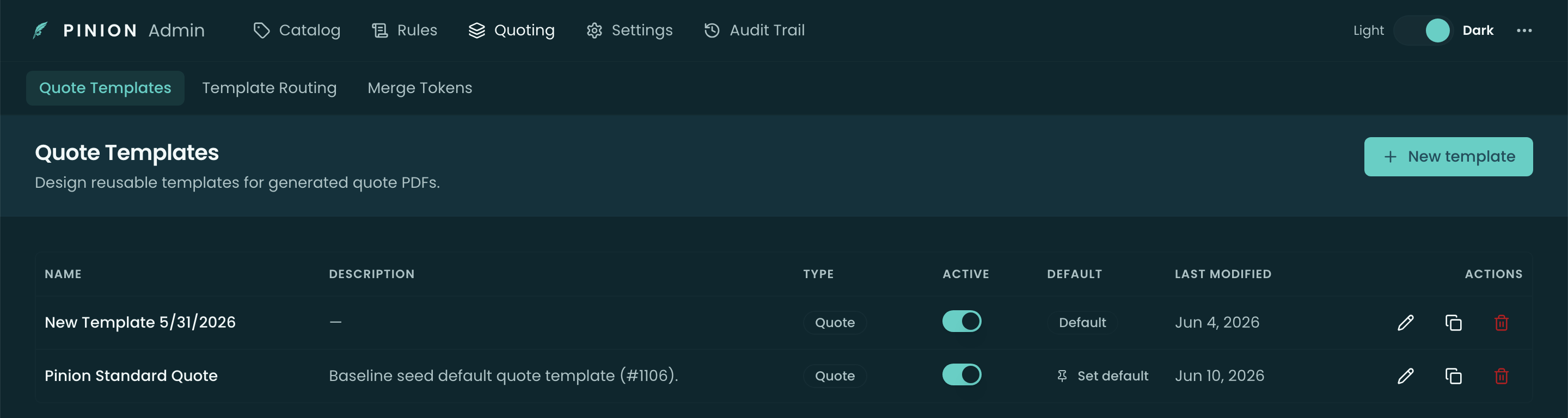
A quote template is built in a dedicated editor, organized into a few areas — Template details, Branding, Page & typography, Layout, and Translations. You manage templates in the Pinion admin app → Quote Templates — the list shows each template’s Document Type, Active toggle, Default badge, and last-modified date, with Edit / Clone / Delete actions and New template.
Template details
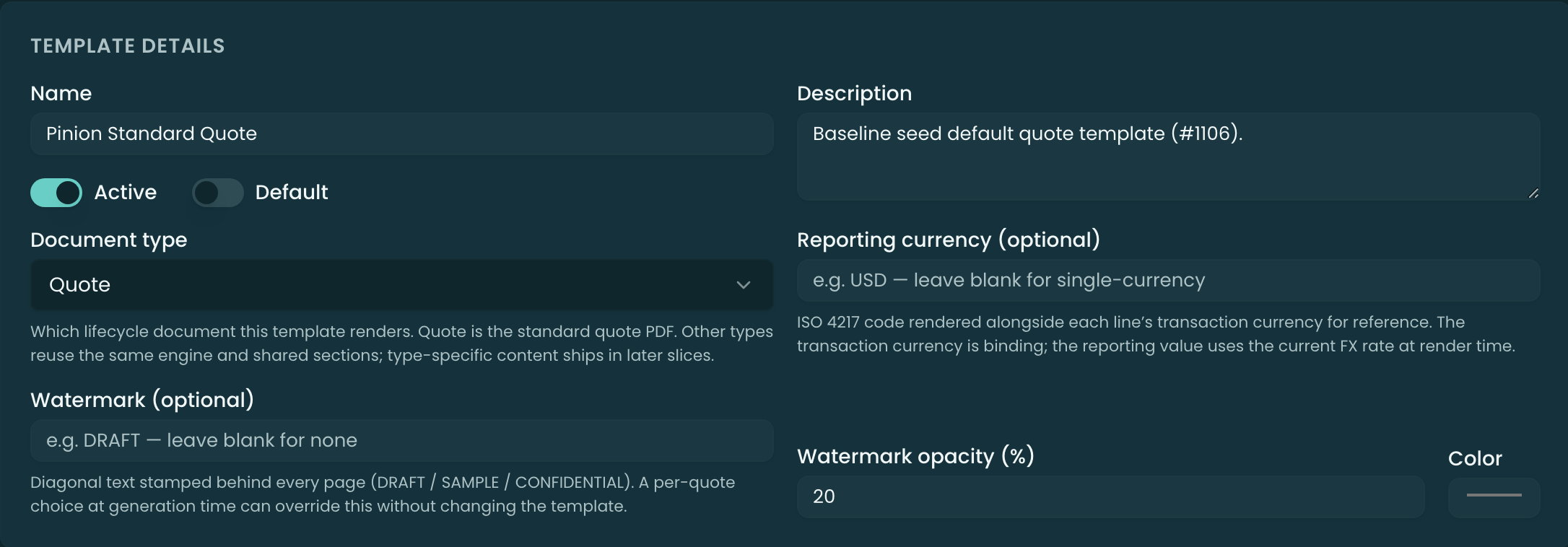
The details are the template’s identity:
- Name and Description.
- Document Type — Quote, Order Form, Contract, SOW, Amendment, or Renewal. The same builder produces all of Pinion’s documents.
- Active — make the template available for use.
- Default — mark one template the org default (the fallback used when routing finds no match).
Branding
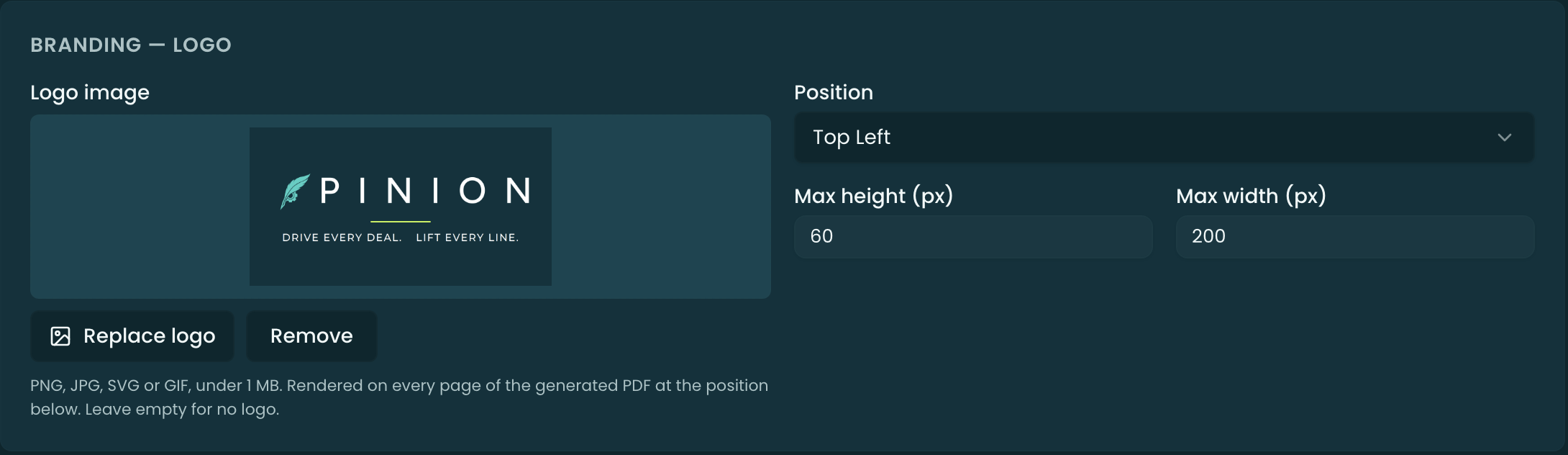
Branding is the look:
- Logo — an uploaded PNG, JPG or GIF (the generated PDF cannot draw SVG) with a position (Top Left / Center / Right, or Footer Left / Center / Right) and max width / height. This is the document’s one logo input: a Top position prints the logo inside the page header, above the header’s company name and fields; a Footer position prints it inside the page footer. The Header section itself carries no separate logo setting.
- Watermark — optional text (e.g. “DRAFT”) with a color and opacity.
Page & typography
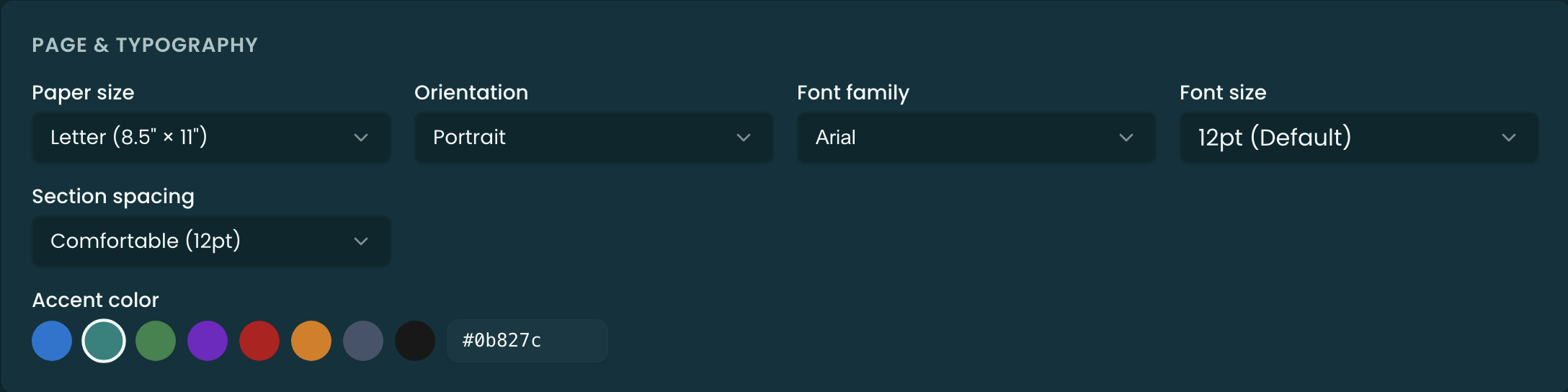
Page & typography controls the paper and text:
- Paper size — Letter or A4 — and orientation.
- Margins.
- Font family and font size for the document body.
Layout — the canvas
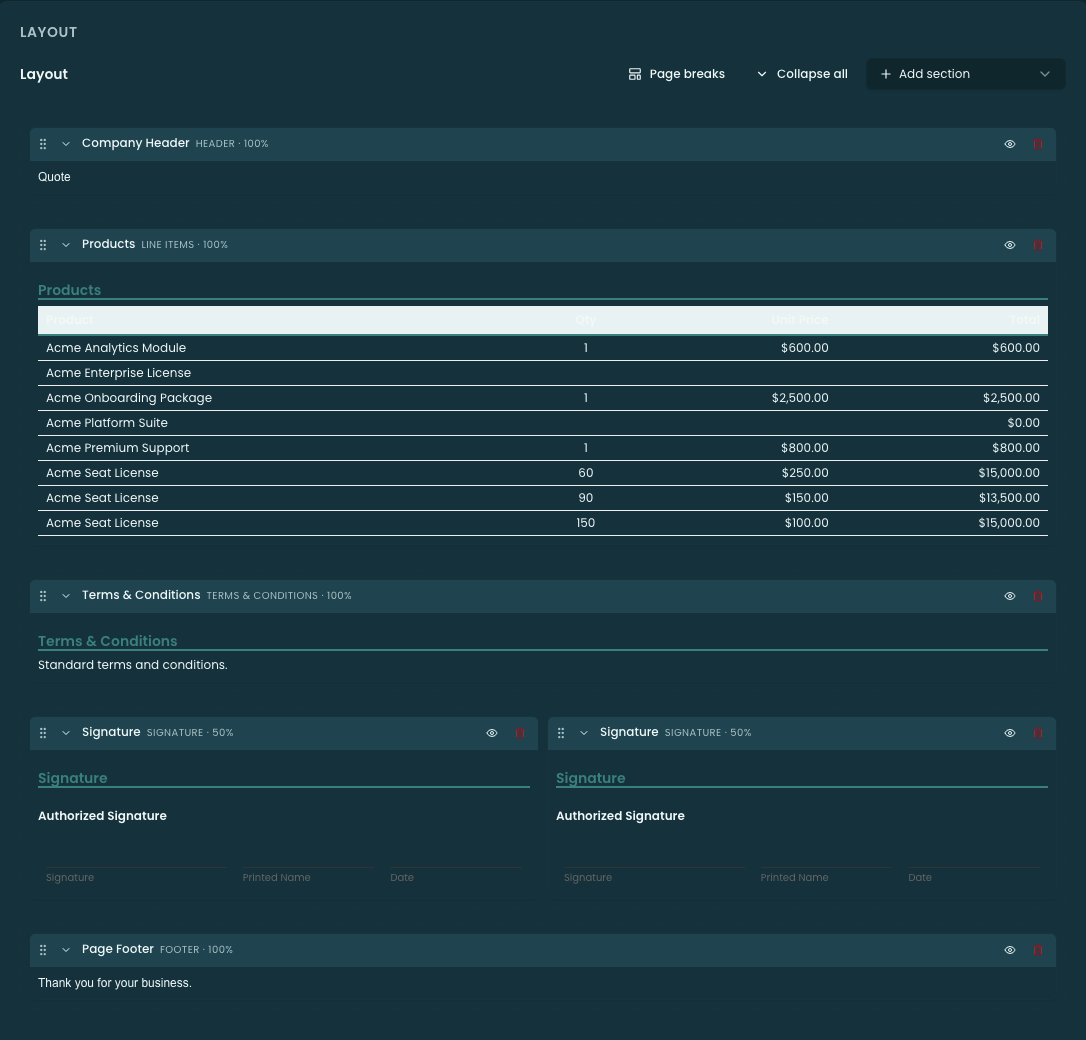
The Layout is the drag-and-drop canvas: stack sections down the page and configure each. Add sections from the palette and drag to reorder. The section types:
- Header / Footer — the band at the top/bottom of each page. A Header prints everything you give it, together: the Branding logo (for a Top position), the company name, the header fields you pick (laid out in the column count you choose), then the rich-text Header content. The Footer composes the same way with its text, fields, and Footer content, plus a Footer-positioned logo.
- Quote Info — a block of deal/account fields (quote number, dates, prepared-for).
- Field Table — a key/value table of fields you choose.
- Line Items — the priced line-item table (column choice below).
- Totals — the subtotal / discount / total block.
- Amendment Diff — for Amendment documents, a before/after comparison of what changed.
- Terms — the terms & conditions body.
- Signature — a signature block (names, dates, signature lines).
- Rich Text — free-form formatted content with merge fields.
- Page Break — force a new page.
Line-item columns
On a Line Items section, the column picker chooses which columns appear (and their order, width, and visibility) — e.g. Product, Quantity, List, Unit, Discount, Total. A column can also carry its own visibility condition, so it only renders when the deal matches.
The Quantity column prints the line’s real billable quantity, fractions included — a prorated MDQ segment can legitimately render 0.3333 or 0.0082. Quantities render the same way here as everywhere else in Pinion: up to four decimals, trailing zeros trimmed, so a whole quantity still prints as 3. Size the column with that in mind, since a fractional quantity is the widest value it has to hold. See MDQ — Segment Pricing.
How a subscription line prints its quantity and term
A subscription line’s billable quantity spans the contract term — two bundles over a three-year term bill as six bundle-years. The document never prints that six as a unit count. The Quantity column prints the units the rep entered and the term beside them, 2 × 3 yr, so quantity × term × unit price ties to the line’s Total on the page. The term follows the bundle: a Component option under that bundle prints 2 × 3 yr, a static Accessory prints 1 × 3 yr, and a Discount option, which is never term-scaled, prints 1. A one-time product prints its plain quantity with no term.
Add the Term column when you want the term in its own column; the Quantity column then prints the bare unit count. The term’s unit follows the bundle’s billing period (yr, mo, qtr, wk).
Bundle rows
Every row that carries dollars always prints. An Itemized bundle prints its option rows with their prices and shows the bundle subtotal on the bundle row itself; a Roll-Up or Standard bundle prints the price on the bundle row and marks its option rows Included. The Show bundle details toggle on a Line Items section hides only those Included rows; it never hides an Itemized option, a Discount option, or an MDQ segment row. And a document that prints line items always prints a Grand Total — when the layout has no Totals section, the total is appended after the line items.
Merge fields
In Rich Text, Header, Footer, and Terms, type a merge field to pull a live value from the deal — account name, quote total, dates, custom fields. The editor offers a field picker / suggestions as you type, so tokens are inserted correctly rather than hand-typed.
Visibility conditions
Any section can be gated with a visibility condition (source / field / operator / value) — show the Amendment Diff only on amendments, or a legal clause only above a threshold. When the condition doesn’t match at render time, the section is dropped.
Translations
A template can carry per-locale translations of its header, footer, terms, and layout text — covered in Translations.
Draft, preview, and publish
The editor uses a draft → published model:
- Save stores your work as a draft (the live document doesn’t change until published).
- Preview renders the template against sample data so you can see the PDF — at the chosen paper size and orientation — before publishing.
- Publish makes the draft live; Version History lists prior published versions so you can review or roll back.
Related
- Template Routing — which template a deal uses.
- Translations — per-locale overrides.
- Generating a Quote — how a rep renders the PDF.