MCP Integration
Pinion exposes a set of tools over the Model Context Protocol (MCP) — the open standard that lets an AI assistant call into an external system. Connect any MCP-capable AI assistant to your org’s Pinion MCP server, and you can ask questions and take actions in plain language — all grounded in your real, persisted Pinion data, not the model’s guesswork. Most tools answer questions; some take actions (like submitting for approval or creating a renewal), and every action confirms with you first.
The Pinion MCP server is AI-tool-agnostic — it works with any client that supports custom MCP connectors. This guide covers the Pinion and Salesforce side of setup; for the client side (adding the connector to your assistant), you’ll follow your AI tool’s own documentation.
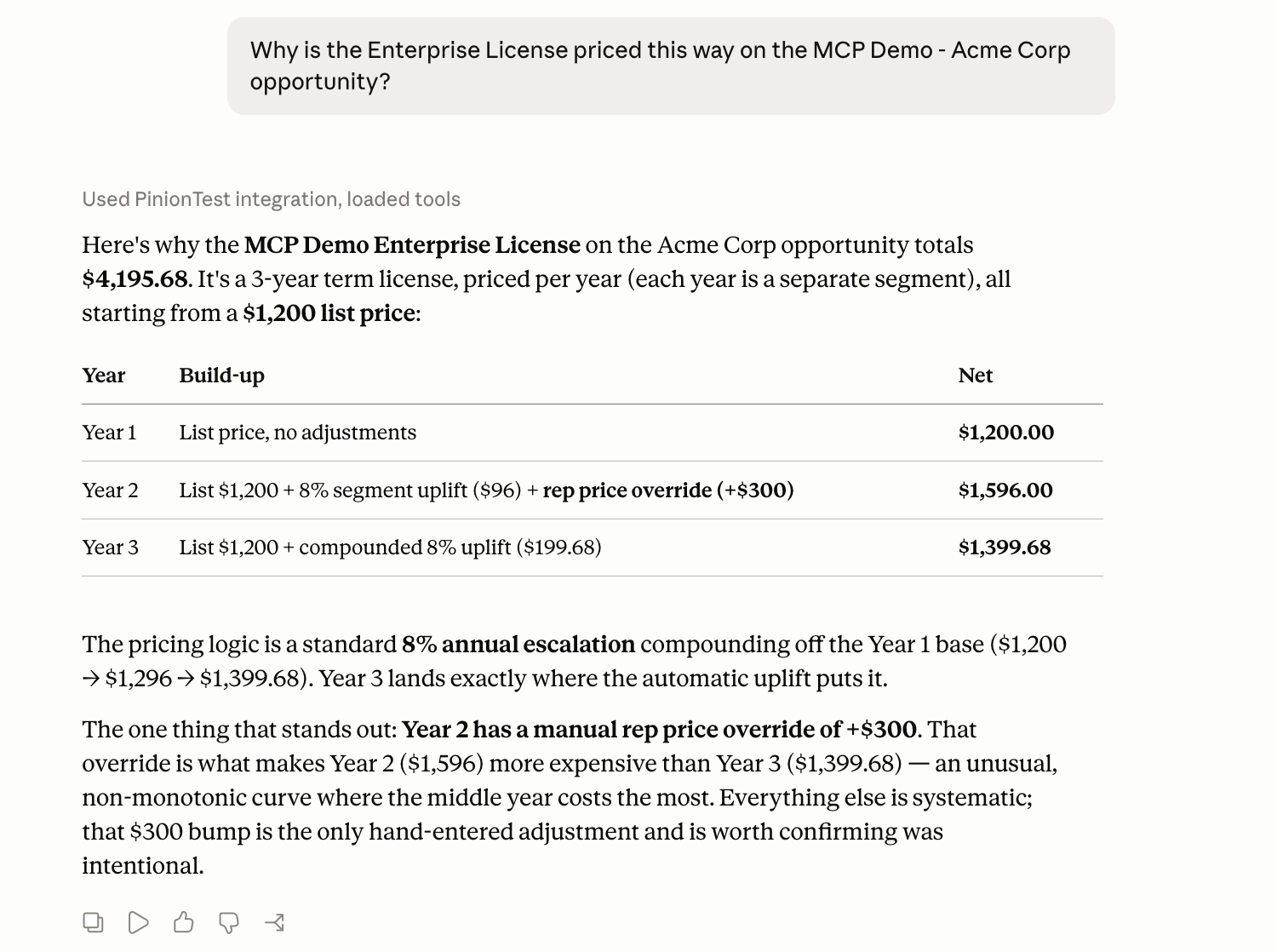
The headline use case: “Why is this line priced this way?” Ask it about a deal, and Pinion returns the exact step-by-step pricing waterfall — list price, contracted price, discounts, MDQ uplift — reconciled to the cent against the saved line.
What it unlocks
Because the AI is calling Pinion’s own tools against your live org, its answers and actions are grounded in the same data and engines your reps and approvers use — the persisted line items, the pricing waterfall, the MDQ segments, the approval queue, the contracts. It doesn’t re-derive anything; it reads what Pinion computed and saved, and any change it makes goes through Pinion’s own logic. The tools span five areas:
- Find & explore — start a conversation without a record Id: find your deals, roll up your pipeline number, browse the catalog, and open a deal’s actual line items (bundle children and segments nested).
- Pricing & rules — estimate a what-if price before you build a quote, configure & price a deal (Save & Sync it onto the line items), explain any saved line’s price step by step (per MDQ segment, to the cent), trace which product/pricing rules fired and why, and look up an account’s negotiated prices.
- Approvals — see your own pending queue with full context, check where a deal stands, submit a deal for approval, and approve or reject a request assigned to you (with your confirmation).
- Accounts, contracts & renewals — brief an account, see a contract’s line-level detail, roll up MRR/ARR/TCV, forecast renewals, and create a renewal or amendment Opportunity.
- Activities & documents — see a deal’s activity timeline (last contact, next step), log a follow-up task, and generate a quote/proposal PDF.
Because the answers are the real build-up, the assistant can also spot anomalies — like the one hand-entered override in an otherwise systematic curve (as in the screenshot above).
See Using the tools for the full list and how to phrase questions.
What you need
| Requirement | Why |
|---|---|
| PinionPlus tier | MCP is a PinionPlus capability. Every tool checks your tier first — a base-tier org gets a friendly upgrade message instead of data. It’s trial-eligible, so a trial org has it while the trial is active. |
| Salesforce Enterprise edition or above | Salesforce Hosted MCP (the platform that serves Pinion’s tools) requires Enterprise edition or higher. |
| An MCP-capable AI assistant | Any client that supports custom MCP connectors. The Pinion-side setup is identical for every tool; follow your assistant’s documentation for the client side. |
| Admin setup, once | An admin activates the Pinion MCP server and registers a connection (an External Client App). See Setting up the MCP server. |
How your data stays safe
The security model is deliberately simple, and it’s the reason this is safe to turn on:
- Every tool call runs as you. Native Salesforce Hosted MCP invokes Pinion’s tools as the signed-in user — the human whose assistant made the call. There is no integration user and no elevated service account.
- You only ever see what you could already see. Every query the tools run is executed in user mode, so your object and field permissions (CRUD/FLS) and record sharing apply exactly as they do in the Pinion UI. An assistant cannot surface a deal, a price, or a field you couldn’t already open yourself.
- Reads answer; actions are bounded — and always confirm first. Most tools only read. Several are actions that change state — configure & price (Save & Sync) a deal, submit a deal for approval, decide an approval, create a renewal or amendment, generate a quote PDF, log a follow-up task. Every action tool: (1) runs as you, so it can only do what you could do yourself in Pinion; (2) is marked as an action, so your assistant prompts you to confirm before it runs — nothing happens behind your back; and (3) still goes through Pinion’s own engines and rules — configuring & pricing a deal reuses the exact Save & Sync path (the server recomputes authoritative prices, so a tampered price can’t stick, and a config that needs approval saves as a Draft and won’t sync); a renewal or amendment is priced by the same engines as the UI; a decide only touches an approval assigned to you; a pre-sync PDF stays watermarked.
- You control who can connect at all. Beyond the per-user model, an admin can limit the connector to a pre-authorized set of users — assign the connection (the External Client App) to a permission set, and only people with that permission set can hook an AI client up to your org. It isn’t open to everyone by default. See Setting up the MCP server ▸ Limit who can connect.
Related
- Setting up the MCP server — the admin steps to activate the server and connect a client.
- Using the tools — the tools available today and how to ask.
- Licensing & Tiers — where MCP sits in the PinionPlus tier.
- Pricing Methods ▸ Overview — the waterfall the Explain-a-price tool narrates.