Approvals
Approval Rules decide when a deal needs sign-off — “any discount over 20% needs VP approval.” This section is everything that happens after a rule fires: getting the deal approved.
The short version: when a saved configuration matches an active Approval Rule, it can’t be synced to the deal until the required approvers sign off. The rep submits it for approval, approvers act on it in the Approvals app, and the configuration moves through a clear set of states until it’s approved (and can sync) or rejected (and comes back to the rep).
The lifecycle
A configuration that triggers approval moves through these states:
- Draft — being built; if it matches no active rule, it can sync immediately (no approval needed).
- Pending — submitted for approval; waiting on one or more approvers. The fields the rule checks are locked on the deal while it’s pending.
- Approved — every required approver signed off; the configuration can now be synced to the deal.
- Rejected — an approver sent it back; it returns to the rep to fix and resubmit.
- Recalled — a pending submission pulled back to edit, from the configurator’s Approvals panel (see Submitting & Recalling).
Who does what
| Role | Where | Does |
|---|---|---|
| Rep | Product Display (on the deal) | Submits a configuration for approval; recalls or resubmits it |
| Approver | The Approvals app → My Approvals | Reviews pending requests and approves / rejects (single or bulk) |
| Approver (away) | Approvals app → My Delegation | Routes their approvals to a delegate during an out-of-office window |
| Anyone on the deal | Approvals app → Trace | Sees exactly which rules fired, why, and who decided |
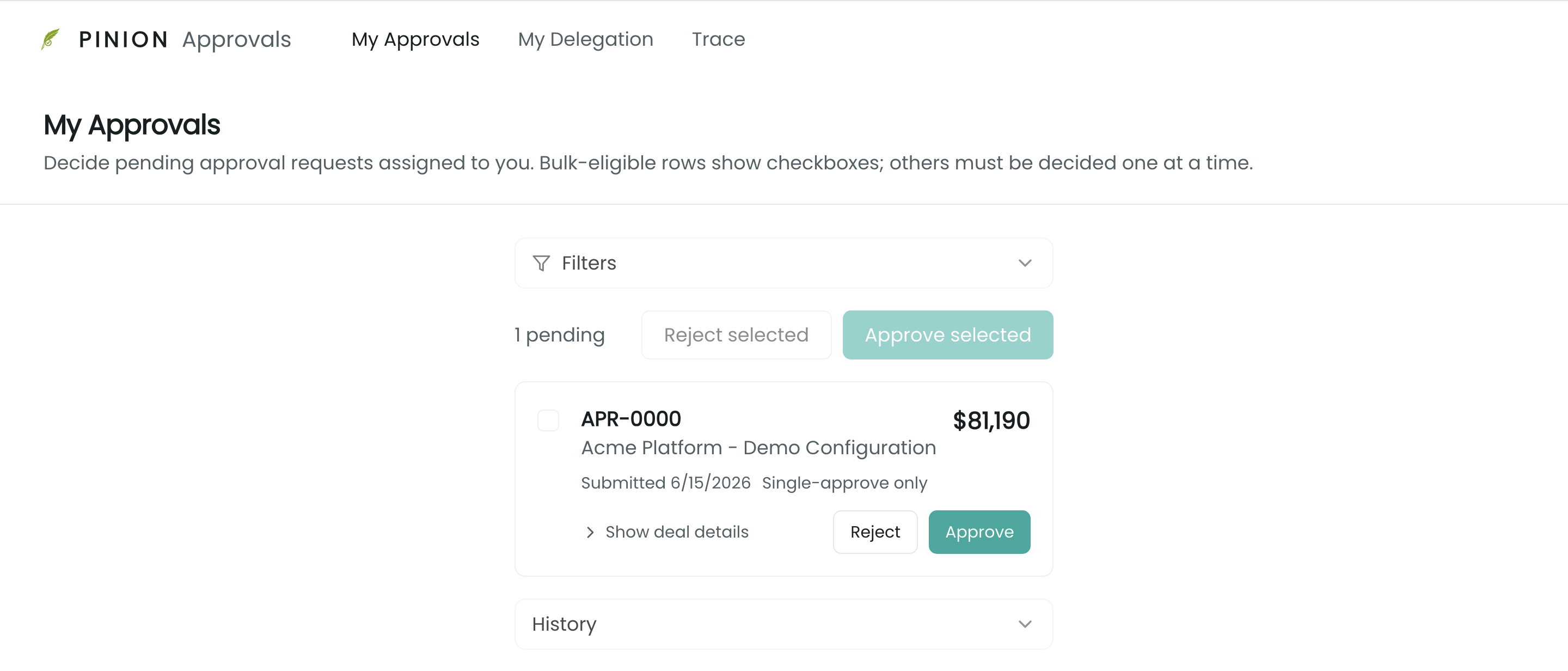
The Approvals app is where approvers work — three tabs: My Approvals (the pending queue), My Delegation (out-of-office), and Trace (the audit/why view). Reps don’t go there to submit; submission happens on the deal itself, in Product Display.
How a deal flows through approval
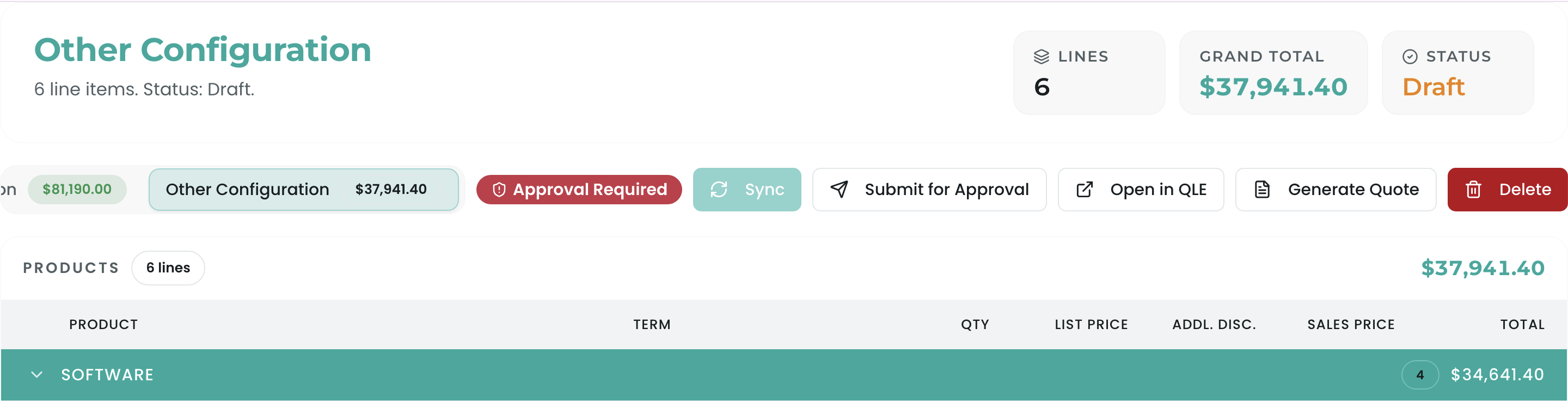
- A rule fires. The rep saves a configuration that matches an active Approval Rule. Product Display shows it needs approval.
- The rep submits. “Submit for Approval” generates an approval request per firing rule, routes each to its approver(s) in the chain’s order, and locks the tested fields on the deal. (See Submitting & Recalling.)
- Approvers decide. Each approver sees the request in My Approvals with the deal context and the reason, and approves or rejects (a rejection requires a comment). Approving advances the chain to the next step; the final approval moves the configuration to Approved. (See Decisions.)
- Notifications fire. Approvers are emailed when a request lands; the rep is emailed on the final decision. (See Notifications & Locks.)
- It resolves. Approved → the rep syncs the configuration to the deal. Rejected → it returns to the rep to fix and resubmit. (Or the rep recalls a pending submission from the configurator’s Approvals panel to edit it before a decision.)
Tiering
The runtime approver experience is available on all tiers. The tier limits are on authoring the rules (see Approval Rules): Base allows up to 3 active, single-step rules; multi-step approval chains are Pinion+.
Related
- Approval Rules (§3) — authoring the rules, chains, steps, approvers, and policy that drive everything here.
- Submitting & Recalling — the rep’s side.
- My Approvals — the approver’s queue + decisions + bulk approve.
- Delegation · Trace · Notifications & Locks.