Trace
When someone asks “why did this deal need approval?” — or “why didn’t it, when it should have?” — the Trace tab answers it. Every time approval rules are evaluated for a deal, Pinion records what happened; Trace shows you that record.
Looking up a deal
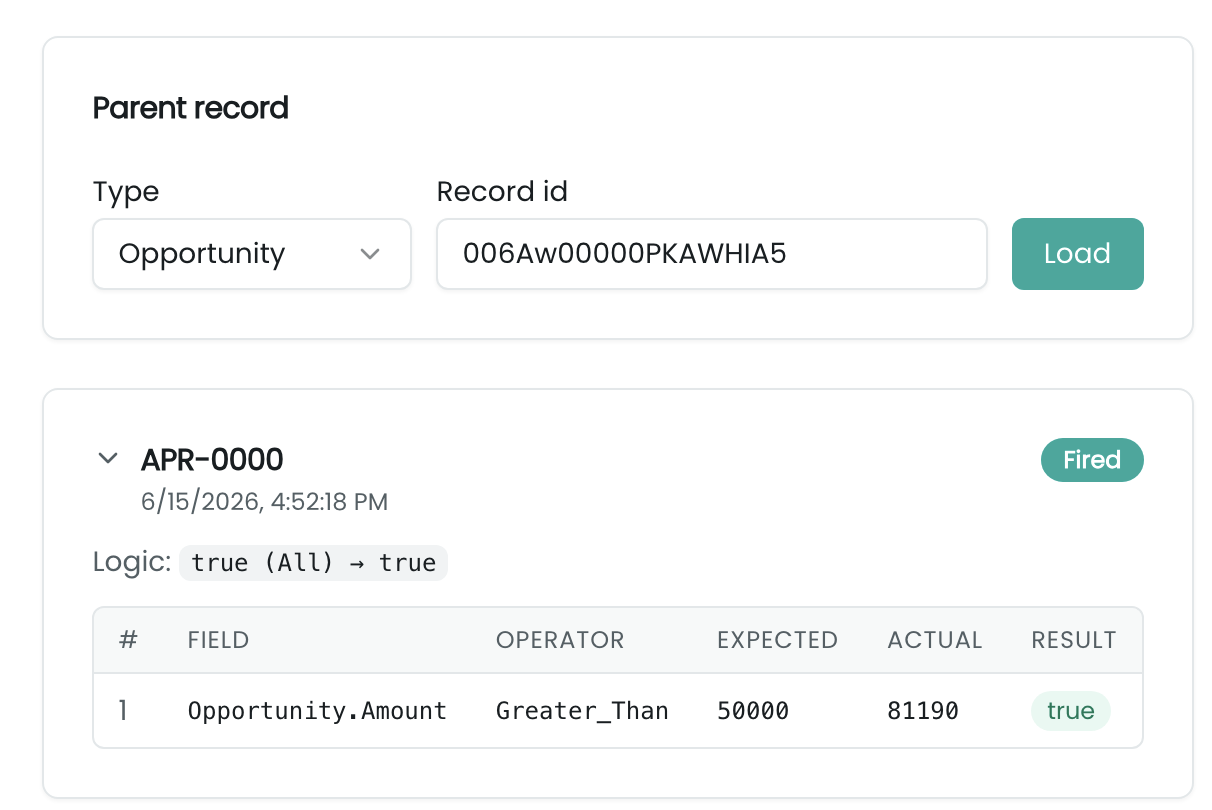
On the Trace tab of the Approvals app:
- Choose the parent type — Quote or Opportunity.
- Enter the record’s ID.
- Click Load.
You get one card per rule evaluation, most recent first.
What each card shows
- The rule and when it was evaluated.
- A result — Fired, Not Fired, or Skipped (e.g. smart approval, or an approver had already approved an unchanged version).
- The logic as evaluated — the per-condition results combined under the rule’s logic and its outcome (e.g.
true (All) → true). - A condition table, one row per condition (columns # · FIELD · OPERATOR · EXPECTED · ACTUAL · RESULT):
- the field it tested (e.g.
Opportunity.Amount), - the operator (the operator name, e.g.
Greater_Than), - the Expected value (the threshold / reference the rule was authored with),
- the Actual value on the deal at evaluation time,
- the Result —
true/false, - and the variable name, if the condition referenced an Approval Variable.
- the field it tested (e.g.
This is what makes “why” answerable at a glance: you can see the exact value the deal had versus the threshold that did (or didn’t) trip the rule.
Grouping
When a submission was per-configuration, the logs are grouped by configuration so you can see each one’s evaluations separately; older parent-level evaluations appear under an Unscoped group.
Good to know
- Trace is read-only — it’s generated automatically at rule-evaluation time; there’s nothing to author or edit here.
- Who can see it — anyone with access to the parent record can view its trace; there’s no separate approval-viewer permission.
- It shows the most recent evaluations (a generous cap), and old trace rows are auto-purged after a retention window — so Trace is for recent debugging, not a permanent archive.
Related
- Approval Rules ▸ Conditions — what the Expected values and logic come from.
- My Approvals — the per-request firing criteria drawer shows the same actual-vs-expected detail for the one request you’re deciding.
- Rule Simulator covers Product/Pricing rules; for approval routing, Trace is the equivalent debugging view.