Template Routing
With more than one template in play — a standard quote, a government order form, a partner-pricebook contract — you don’t want reps picking the right one by hand. Template Routing does it for them: rules that map a deal’s Account and/or Pricebook to a template, resolved automatically when a rep generates the document.
You manage them in the Pinion admin app → Template Routing. Each rule shows its Match type (Account + Pricebook / Account / Pricebook), the Account, the Pricebook, the Template, a Priority, and an Active toggle.
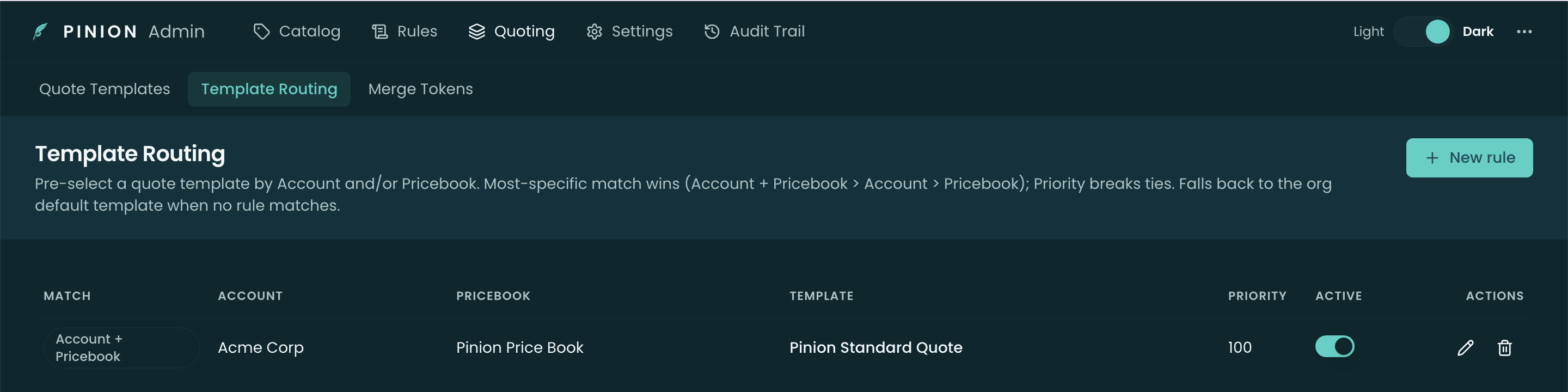
How a rule matches
A rule can scope to an Account, a Pricebook, or both:
- Account + Pricebook — applies only when the deal’s account and pricebook both match. The most specific.
- Account — any deal on that account.
- Pricebook — any deal on that pricebook.
Which rule wins
At generation time, Pinion resolves the template in this order:
- Most-specific match wins — Account + Pricebook beats Account, which beats Pricebook.
- Priority breaks ties — among rules of equal specificity, the Priority value decides.
- Default fallback — if no rule matches, the org default template (set on the Quote Templates list) is used.
So a rep almost never has to choose — the right document comes up, and the default covers everything else.
Authoring a rule
Add a rule, then pick an Account and/or a Pricebook (lookups), the Template, and a Priority. Leave one of Account / Pricebook blank to make the rule broader. Active lets you disable a rule without deleting it.
Related
- Quote Templates — the templates routing chooses between, and the org default.
- Generating a Quote — where routing is resolved when the rep generates.